.png?width=256&height=60&name=Logo%20(1).png)
Languages
Selecting a Language
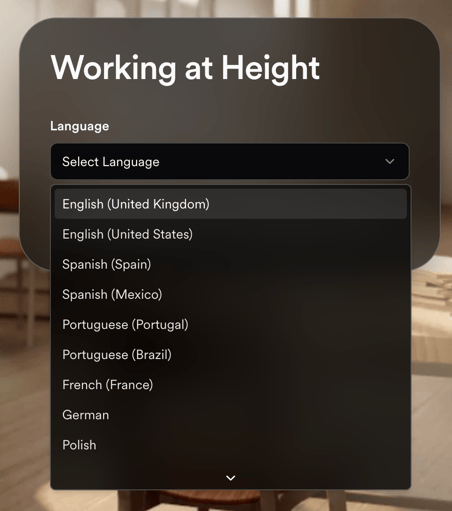
Upon starting a Module, you will see a dropdown listing the available languages for that Module. Simply choose your preferred language from this selection.
Changing Language
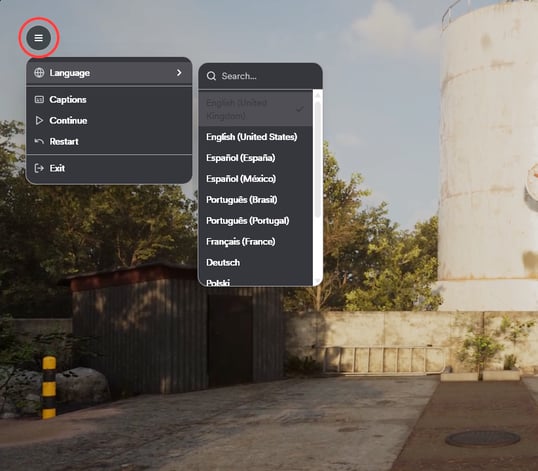
If you wish to change the language during a module, simply:
-
Navigate to the menu icon (The three horizontal lines, highlighted in red on the screenshot below)
-
Hover over "Language"
- Select your desired new Language from the dropdown provided
For more information, see our dedicated Knowledge article on Languages here.
Sound and Captions
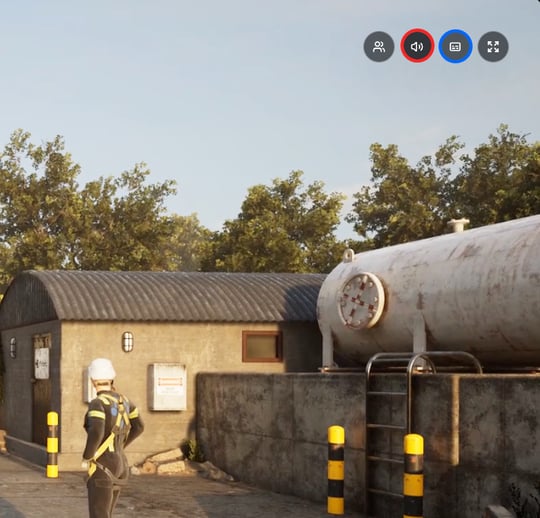
A Module's voice-over and other sounds, or captions, can both be toggled on and off at any time by either pressing the sounds icon (highlighted in red below) or the captions icon (highlighted in blue) respectively.
Fullscreen
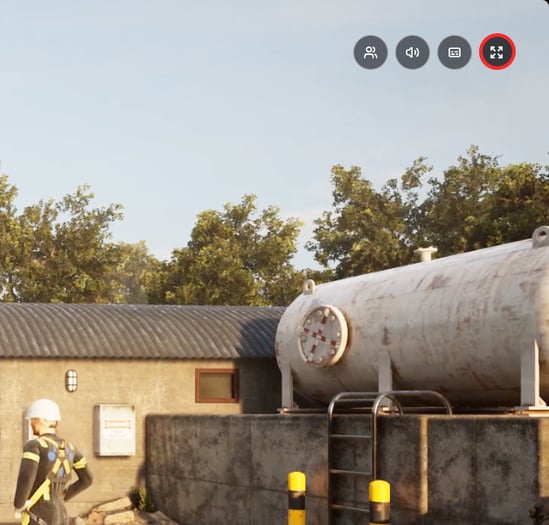
Fullscreen mode can be toggled on and off by pressing the full-screen icon, highlighted in red below.
Pause/Continue, Restart and Exit
At any point, should you wish to pause a playthrough of a module, simply click the menu icon (three horizontal lines highlighted in red below), and to resume, simply click continue.
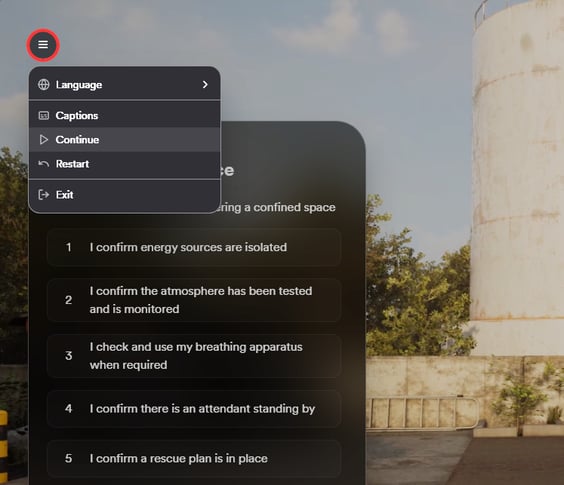
From the above Menu, you can also restart or quit the session entirely should you need to. If you then reload the module, you will be taken back to the section of the session you were on previously.
Adjusting Text Size (Zoom)
If you wish to increase the text size for better readability, you can do this using your browser's zoom controls. For Google Chrome, select the three dots icon  in the top right-hand corner of your browser and use the zoom +/- icons
  to zoom in and out. Alternatively, hold down Ctrl (Windows) or Cmd (IOS) and use the +/- keys on your keyboard, or the mouse scroll wheel.