.png?width=256&height=60&name=Logo%20(1).png)
Assigning roles in Pixaera helps control what users can see and do on the platform. This ensures every team member has the right level of access for their responsibilities.
User roles
There are three default roles in Pixaera:
1. Admin
Admins have full access across the platform.
- Add, edit, and deactivate users
- Assign roles and manage groups
- Access all reporting and management tools
- Control classroom and VR deployment settings
2. Manager
Managers have access to oversee teams and sessions.
- View and manage training activity within their assigned groups/sites
- Create OTPs and VR PINs for users
- Host classroom sessions if granted Classroom Host permissions
- Cannot change roles or deactivate users
3. Trainee
Trainees are end users who complete assigned training.
- Access training modules (PC, VR, and classroom)
- View their own training history
- Cannot manage users or access reports
Role permissions
|
Page
|
Permission
|
Admin
|
Manager
|
Trainee
|
|---|---|---|---|---|
|
PC Access
|
N/A
|
 ✅ ✅ |
✅ |
✅ |
|
VR Access
|
N/A
|
✅ |
✅ |
✅ |
|
Device Management
|
N/A
|
✅ |
✅ |
❌
|
|
Reports
|
N/A
|
✅ |
✅ |
❌
|
|
User Management
|
Add User(s)*
|
✅ |
✅ |
❌ |
|
User Management
|
Create OTP
|
✅ |
✅ |
❌
|
|
User Management
|
Create VR Pin
|
✅ |
✅ |
❌
|
|
User Management
|
Export
|
✅ |
✅ |
❌ |
|
User Management
|
Edit*
|
✅ |
✅ |
❌
|
|
User Management
|
Deactivate
|
✅ |
✅ |
❌
|
|
User Management
|
Bulk Actions>Export
|
✅ |
✅ |
❌ |
|
User Management
|
Bulk Actions>Deactivate
|
✅ |
✅ |
❌
|
|
User Management
|
Bulk Actions>Create OTP
|
✅ |
✅ |
❌
|
|
User Management
|
Bulk Actions>Create VR Pin
|
✅ |
✅ |
❌ |
|
User Management
|
Bulk Actions>Change User’s Roles
|
✅
|
❌
|
❌
|
|
User Management
|
Bulk Actions>Change Users’ Status
|
✅ |
❌
|
❌
|
|
Classroom
|
View and upload sessions*
|
✅ |
✅ |
❌ |
* A manager cannot add User(s) with an ‘Admin’ role as this supersedes their user permissions
* A manager can only ‘Edit’ the first and last name of a user
* Regardless of whether a user is a Manager/Admin, they will need the ‘Classroom Host’ setting toggled on on their user profile
Assigning a role
Roles are assigned during user creation:
- When using Add Single User, select the role from the dropdown.
- When using Bulk Import, include the role in the Role column (e.g., admin, manager, trainee).
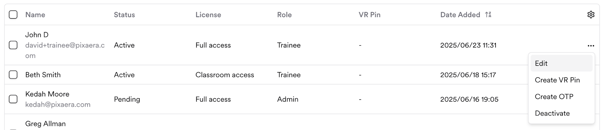
You can update a user's role at any time from the Organization dashboard by clicking on “Edit”.