.png?width=256&height=60&name=Logo%20(1).png)
Managing users at scale is easy with Pixaera’s bulk actions. Whether you're uploading new users, assigning them to groups, or making role changes, bulk tools help you move faster — even with thousands of users
Bulk actions mean:
- Faster onboarding
- Fewer manual errors
- Less admin overhead
Bulk user upload & allocation
1. Upload users and assign to group, site, or region
- Under Organization menu, navigate to the Users tab
- Click Add User(s) → Bulk Import
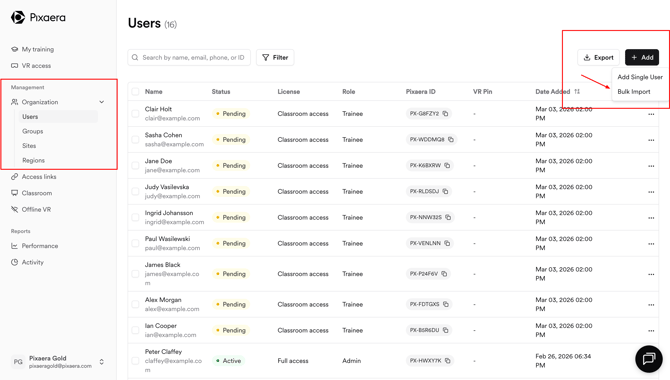
- Download the CSV template and fill in user details
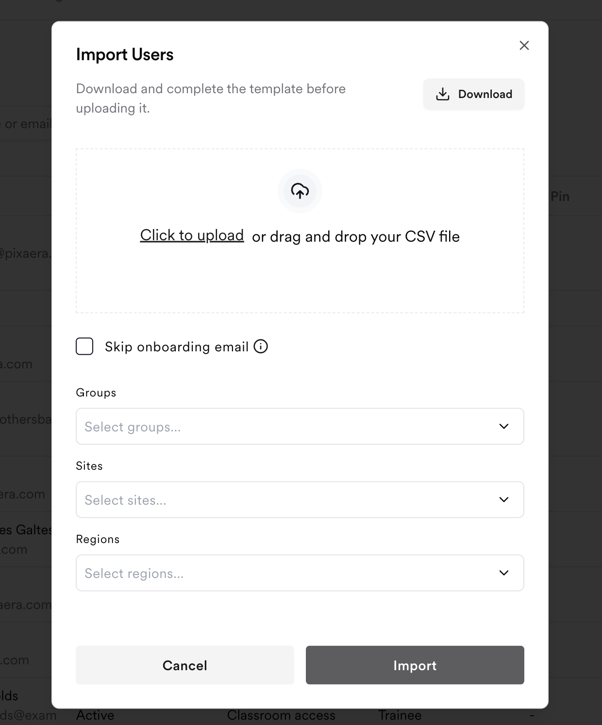
2. Add users to an existing group, site, or region
- Open the desired Group, Site, or Region
- Click Add Users → Bulk Import
- Download the template and populate it with the user details
- Upload the file and users will be added directly to the selected group/site/region
3. Add users when creating a new group, site, or region
- Navigate to the Groups, Sites, or Regions tab
- Click Create and enter the name and description
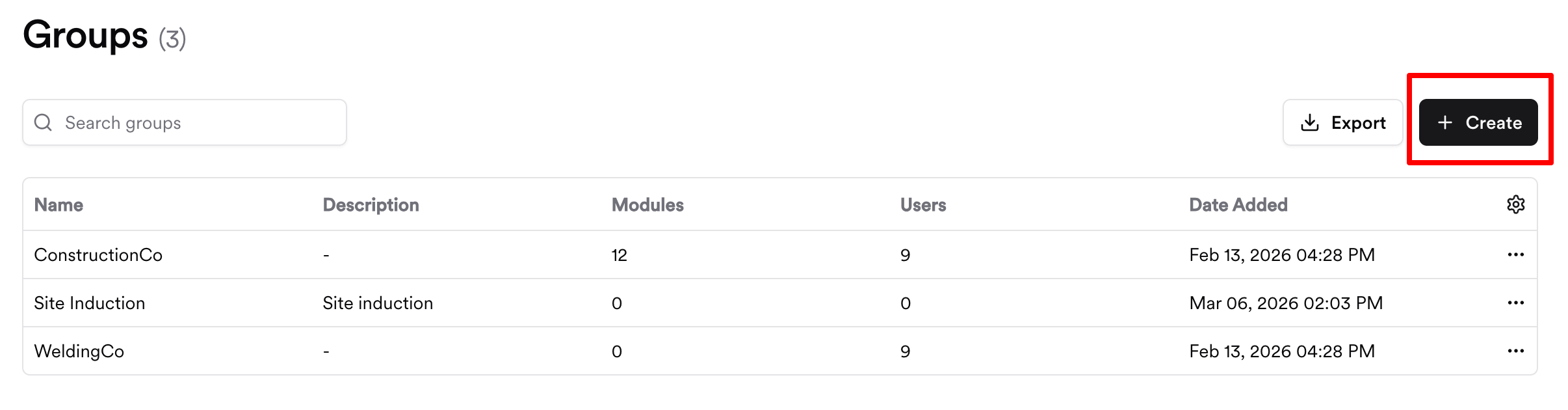
- Once saved, click Add Users → Bulk Import
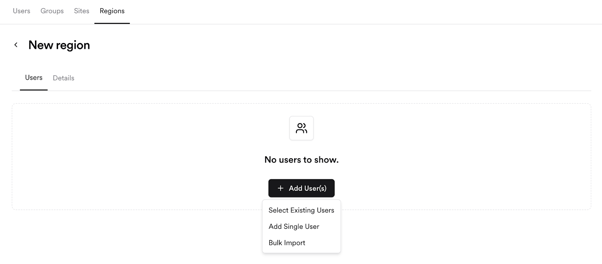
- Complete the template and upload to assign users to your newly created segment
Bulk user actions
From the Users tab, you can perform multiple bulk actions at once:
How:
- Select individual users or tick the checkbox at the top row to select all
- Click the Bulk Actions dropdown to choose an action
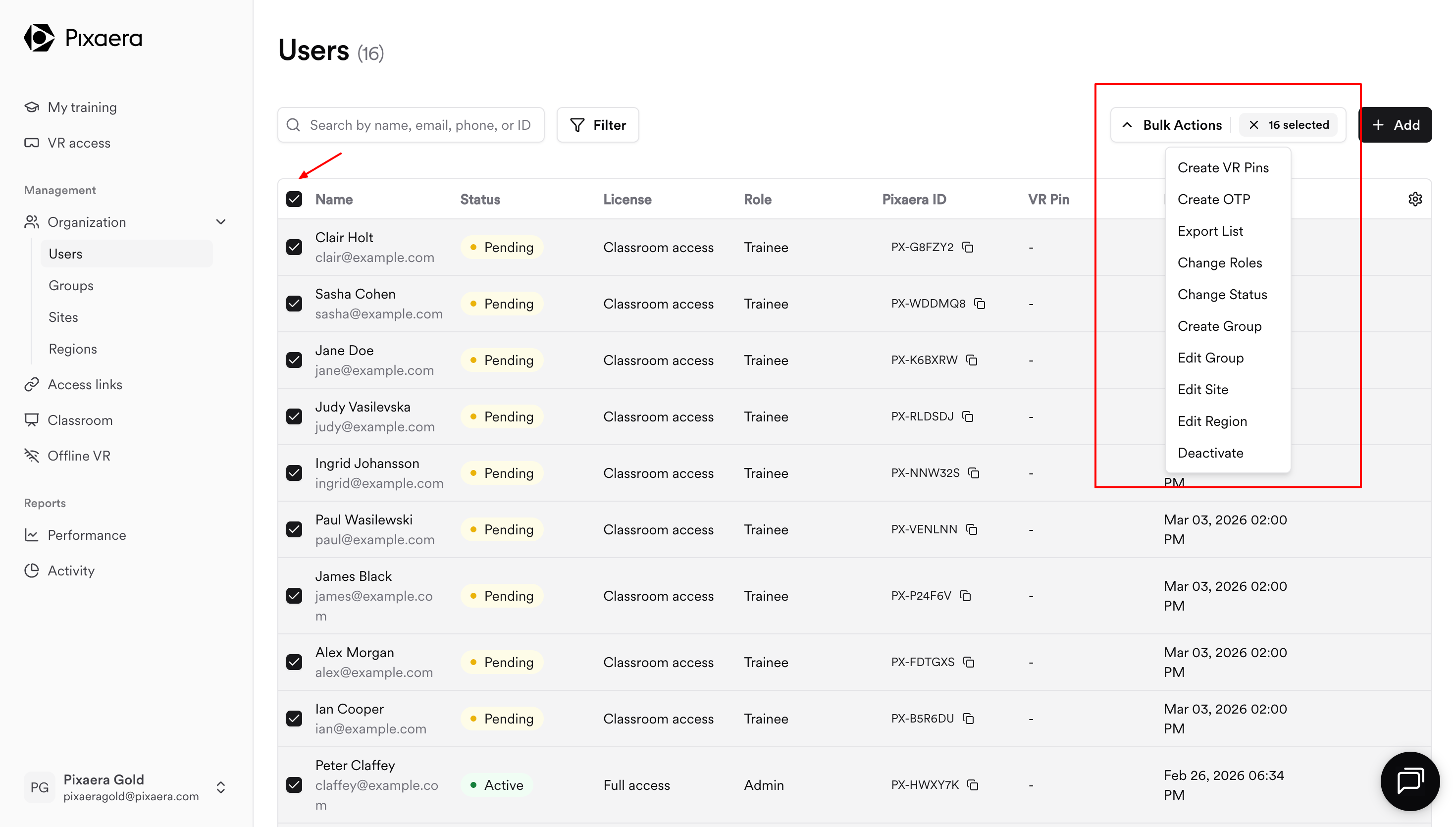
Available actions:
- Create VR PINs – Instantly generate PINs for selected users
- Create OTPs – Generate one-time passwords for login
- Export List – Download selected users into a CSV
- Change Roles – Update user roles to admin, manager, or trainee
- Change Status – Set selected users to Active, Pending, or Deactivated
- Create Group – Make a new group from selected users
- Edit Group – Add or remove users from an existing group
- Edit Site – Assign or remove users from a site
- Edit Region – Assign or remove users from a region
- Deactivate – Disable user accounts