.png?width=256&height=60&name=Logo%20(1).png)
The Organization feature in Pixaera provides a scalable way to manage your workforce. Whether you’re training teams across 2 sites or 200, this system lets you assign roles, oversee training at every level, and keep everything organized in one place.
Here’s how the system is structured:
- Users – View and manage all employee and contractor records
- Groups – Organize users by role, function, or project team
- Sites – Reflect physical locations such as offices, plants, or field sites
- Regions – Group sites geographically to manage at a higher level
Adding users
You can add users to the Pixaera platform in two ways: individually or in bulk.
1. Add a single user
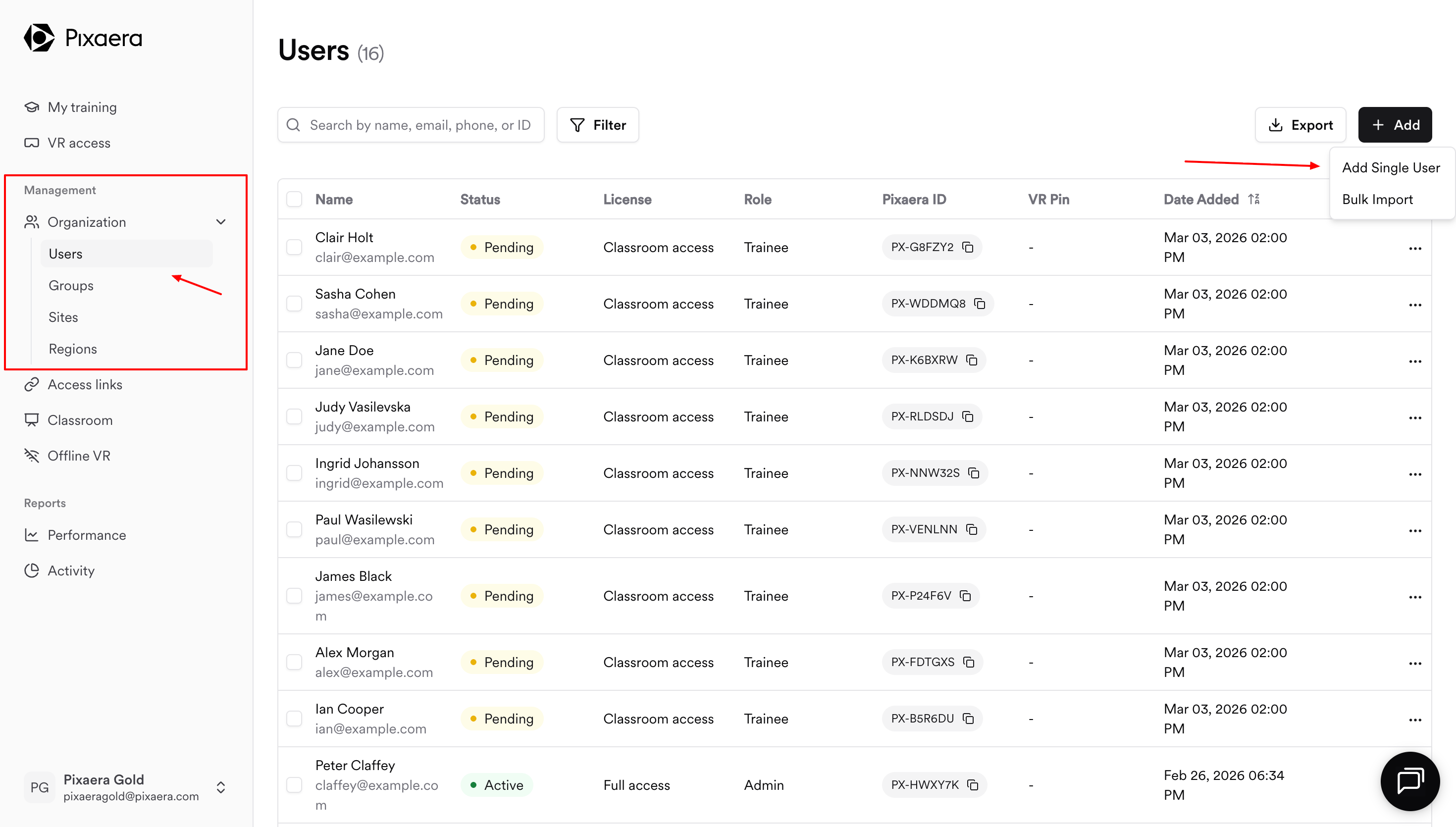
- Click on the Organization tab and navigate to Users. From there, click Add User(s) → Add Single User.
- Fill out the form with:
- First Name
- Last Name
- Role (Admin, Manager, or Trainee)
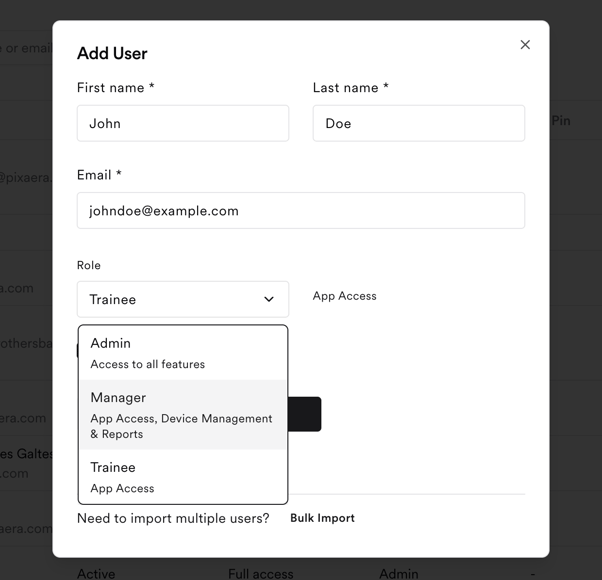
Optional settings:
- Skip onboarding email: Choose this if you want to add users silently without triggering a welcome email. Users can still access their accounts later via app.pixaera.com.
- Classroom Host: Enable this only for Admin or Manager roles who will schedule or manage classroom sessions.
2. Bulk import users
To add multiple users at once:
- Click Add User(s) → Bulk Import.

- Download the CSV template.
- Fill in the columns:
- First Name
- Last Name
- Role (trainee, manager, or admin)
- Ensure the first row remains unchanged as the header row.
- Upload the completed file back into the platform via the Bulk Import form.
- Select the allocation to Site, Group, or Regions – that’s where users will be assigned upon upload completion.
❗The first row of the CSV Bulk Import file must contain the header row. Please do not modify this row, as it will cause the bulk import to fail.