.png?width=256&height=60&name=Logo%20(1).png)
Pixaera supports online learning with two flexible access options: learners can complete training via the browser or through the Pixaera desktop app. This guide shows you how to deliver online training efficiently using either method.
Option 1: Access via Browser
This is the fastest and most accessible way to complete training. You can use your PC, laptop, or a mobile device — no installation needed.
Steps:
- From the “Training” tab in your Pixaera dashboard, set the toggle to ‘Browser’ and click on a training module you’re taking.
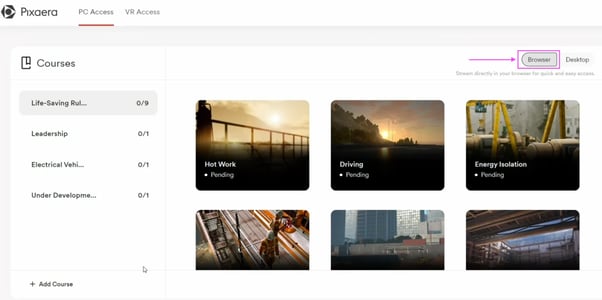
- You’ll be redirected to a loading screen. Once it completes, your training will start.
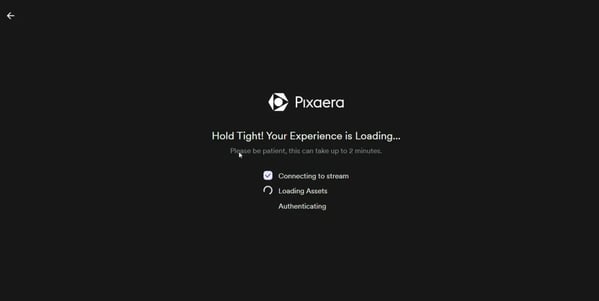
ℹ️ Some modules are already available in Advanced Streaming optimized for low-bandwidth regions. We're gradually rolling it out across all our modules.
Option 2: Access via Desktop App
For more robust performance or full-screen experiences, learners can download and use the Pixaera desktop app.
Steps:
- Download the App
- From the “Training” tab in your Pixaera dashboard, set the toggle to ‘Desktop’.
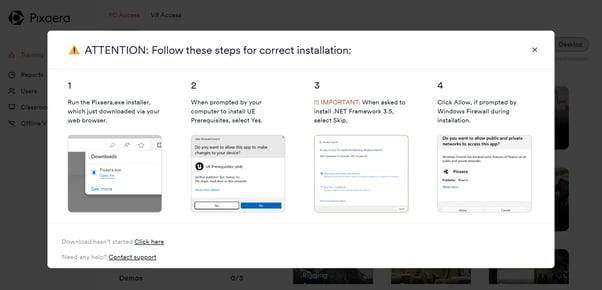
- Click on any module and you’ll be prompted to ‘Download and Install the Pixaera app’.
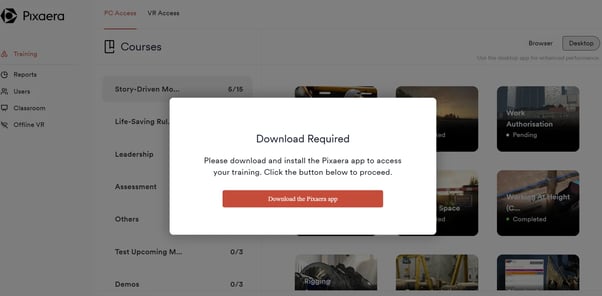
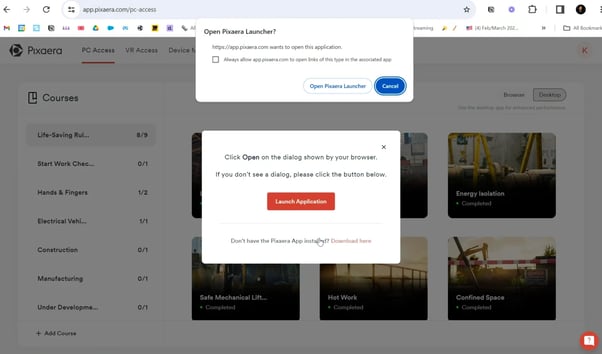
- Your browser will ask for permission to launch the Pixaera Launcher — click ‘Open’ or ‘Launch Application’ if prompted.
ℹ️ The installer is about 150MB. If you experience any issues during download, contact help@pixaera.com
Installation process
- Locate the downloaded .exe file on your computer.
- Double-click the file and follow the on-screen instructions.
ℹ️ A User Account Control prompt will appear to install UE prerequisites — approve this prompt.
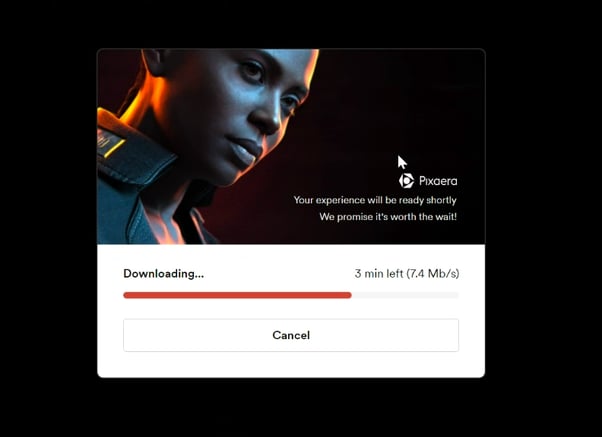
- The app will start downloading training content.
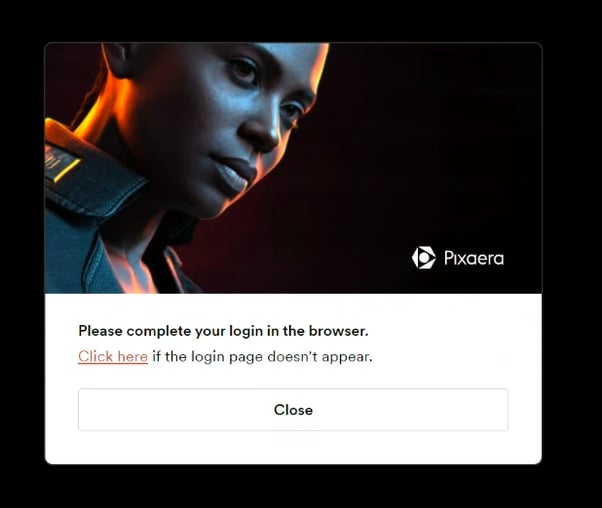
- Once installed, return to your browser and log in again to authenticate access.
- Training will then launch automatically upon authentication.
This method is especially useful for users who train frequently or need a more stable, responsive experience.
Adding your training content
Need a new or customized training module?
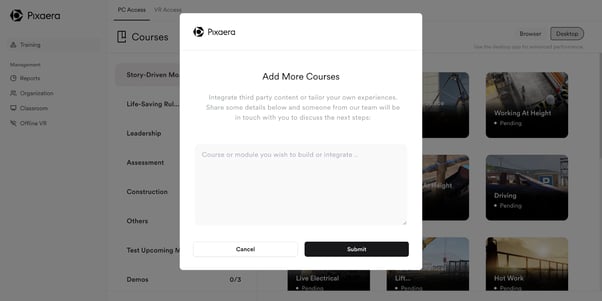
- Click the ‘+ Add Course’ button in the Training tab.
- This opens a request form to notify the Pixaera team of the content you'd like to create or tailor.
- Our team will review the request and reach out to support your training needs.
Troubleshooting
I haven't received an activation email. Who should I contact?
If you haven’t received your activation email, reach out to help@pixaera.com. Our team will respond within 24 hours.
I have trouble downloading the application. What should I do?
If the app download fails or stalls, email help@pixaera.com. We’ll help you resolve the issue as quickly as possible.
My simulation doesn’t run smoothly (lag, stutter, etc.).
Check the following:
- Make sure your machine meets our minimum requirements:
- GPU: Intel HD Graphics 500 series or better
- CPU: Dual-core, 1.7 GHz+
- RAM: 8 GB minimum
- On laptops, ensure Battery Optimization is set to Performance Mode and your charger is plugged in.
- Update your GPU drivers to the latest version.