.png?width=256&height=60&name=Logo%20(1).png)
Pixaera’s reporting tools allow you to track and export completion data for your team. This guide explains how to use the Activity Report and Performance Report to download the data you need.
Note: You need to be a Manager or Admin in Pixaera to be able to view reports
The Activity Report
The Activity Report gives you a record of all training activity - who has completed what, and when. Use this report when you need to verify completions, report to stakeholders, or identify who still needs to complete training.
To access the Activity Report:
- Log in to the Pixaera admin portal at app.pixaera.com
- Navigate to Activity Report under the Reports section
- Use the filters to narrow by date range, module, user group, or site.
- Find the report that you want to export or navigate to the bottom to download the whole thing
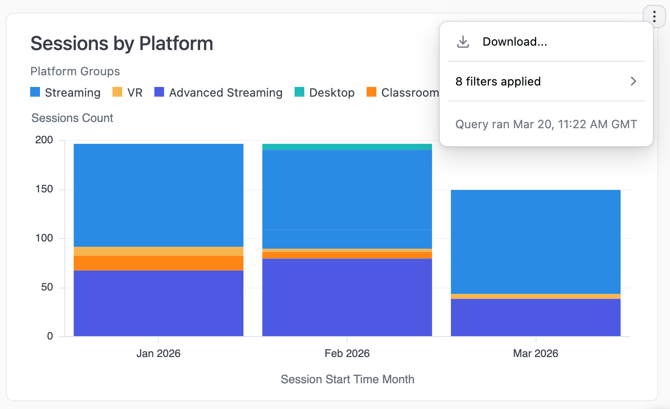
- Click the three dots to download the report as a CSV or Excel file.
The Performance Report
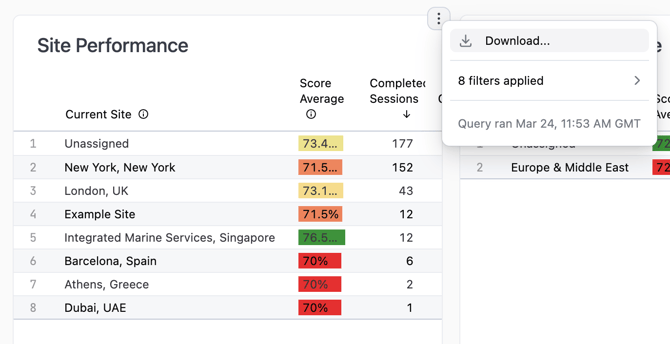
The Performance Report shows how learners performed within modules - including decision accuracy, Stop Work identification, and retention scores. Use this report when you want to evaluate training effectiveness or identify knowledge gaps across your team.
To access the Performance Report:
- Log in to the Pixaera admin portal at app.pixaera.com
- Navigate to Performance Report under the Reports section
- Use the filters to select the module, user group, date range, or site.
- Find the report that you want to export or navigate to the bottom to download the whole thing
- Click Export to download the report as a CSV or Excel file.
Filtering your report
Both reports support filtering by:
- Date range - narrow to a specific deployment period or compliance window
- Module - see results for a single course or all courses
- User group / site / region - useful for large deployments across multiple locations
- Completion status - filter to show only completed, incomplete, or all learners
Platform- filter to show Desktop, Streaming, VR, Classroom, Advanced Streaming or a combination of all
*Note you may need to wait 3-5 seconds for the drop down list to appear
Sharing completion data with your LMS or compliance team
If your organisation requires completion data to be submitted to an external system (such as a compliance platform, contractor management system, or LMS), download the Activity Report CSV and provide it to the relevant team.
If your LMS is integrated with Pixaera via SCORM or via a Custom Integration, completions are sent automatically and you may not need to export manually. See Integrating Pixaera with your LMS (SCORM) for more information.
💡 Tips & best practices
- Schedule manual regular report exports (e.g. weekly or monthly) to keep your compliance records up to date.
- Use site and group filters to generate reports for specific teams rather than exporting your entire user base every time.
- CSV and Excel files can be opened directly in Excel for further filtering and formatting.