.png?width=256&height=60&name=Logo%20(1).png)
How to change your language
You can change the interface language from anywhere in the platform. No admin access is required — every user controls their own language preference.
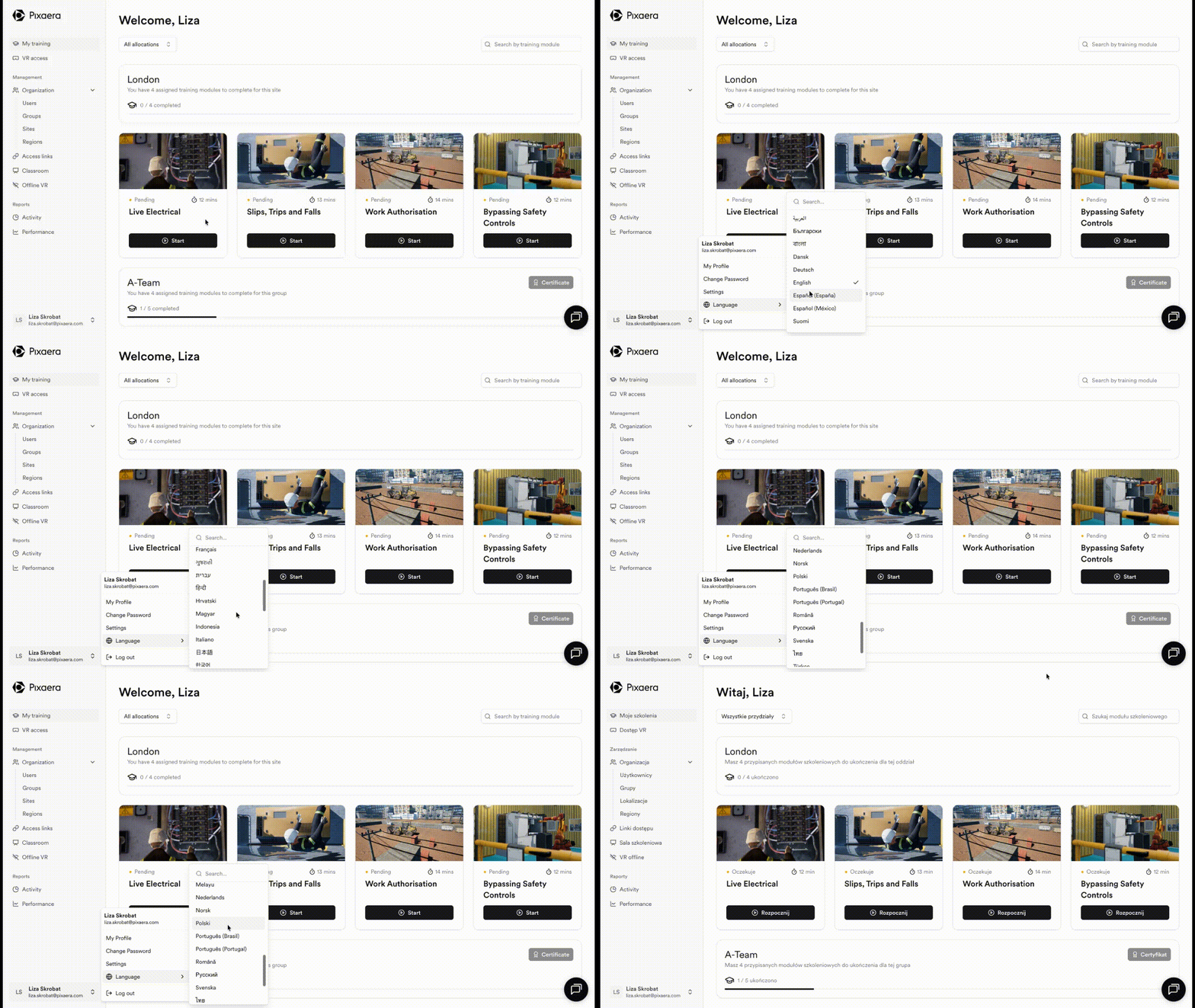
1. Open your account menu
Click your name or initials in the bottom-left corner of the sidebar. A menu will appear with your account options.
2. Go to Language
Hover over Language in the menu. A submenu will open to the right, showing a searchable list of all available languages. Your current language is shown with a checkmark.
3. Select your preferred language
Scroll through the list, or use the search field at the top of the submenu to find your language quickly. Click to select it.
4. The app updates immediately
The interface switches to your chosen language straight away. No page refresh or logout is needed. All navigation, labels, and buttons will now display in your selected language.
Supported languages
The Pixaera web app UI is available in the following 34 languages:
|
Language |
Language |
Language |
|
Arabic العربية |
Gujarati ગુજરાતી |
Portuguese (Brazil) Português (Brasil) |
|
Bengali বাংলা |
Hebrew עברית |
Portuguese (Portugal) Português (Portugal) |
|
Bulgarian Български |
Hindi हिंदी |
Romanian Română |
|
Chinese (Simplified) 中文(中国) |
Hungarian Magyar |
Russian Русский |
|
Chinese (Traditional) 中文(繁體) |
Indonesian Indonesia |
Spanish (Mexico) Español (México) |
|
Croatian Hrvatski |
Italian Italiano |
Spanish (Spain) Español (España) |
|
Danish Dansk |
Japanese 日本語 |
Swedish Svenska |
|
Dutch Nederlands |
Korean 한국어 |
Thai ไทย |
|
English English |
Malay Melayu |
Turkish Türkçe |
|
Finnish Suomi |
Marathi मराठी |
Vietnamese Tiếng Việt |
|
French Français |
Norwegian Norsk |
|
|
German Deutsch |
Polish Polski |
What gets translated
The language setting controls the interface — the labels, navigation, and buttons you interact with. The following explains what is and is not affected:
|
Element |
Notes |
|
|
✅ |
Navigation sidebar |
All menu labels and section names |
|
✅ |
Page titles and headings |
My training, Organisation, Reports, etc. |
|
✅ |
Buttons and actions |
Start, Submit, Save, Log out, and all CTAs |
|
✅ |
Status labels |
Pending, Completed, Optional |
|
✅ |
Form fields and placeholders |
Search fields, input labels, dropdowns |
|
❌ |
Training module names |
Module titles remain in their original language |
|
❌ |
Training simulation content |
Controlled separately via content configuration |
|
❌ |
Reports (Activity & Performance) |
Currently English only — see Known limitations |
💡 Module languages
The language of training simulations is configured separately by your organisation's admin team and may differ from your UI language.
Known limitations
The following areas of the platform are not yet covered by localisation. We are actively working to address these and will update this article when they become available.
⚠️ Reports are currently available in English only
The Activity and Performance reports — including all chart labels, column headers, and exported data — are displayed in English regardless of your language setting. This applies to both in-app reporting and data exports. Localisation of reports is planned for a future release.
Some authentication pages are not localised for RTL languages
Certain pages within Pixaera are handled by Auth0, our authentication provider, and do not support RTL languages like Arabic: password reset, the "Forgot password" flow, and the Access Link pages (Create Account and Enter Password) will not be localised.