.png?width=256&height=60&name=Logo%20(1).png)
Trainees can complete Pixaera training directly on the phone in portrait mode — no app install required.
This guide explains how to:
- Launch Pixaera training on mobile
- Interact with the scenario
- Evaluate the results
1. Launching training
Trainee can receive training in one of three ways:
- An access link (if you don't have a Pixaera account);
- By signing in to your existing Pixaera account directly.
These will take you to your Pixaera dashboard (like below). From there, you will see the training modules assigned to you or all Pixaera modules enabled by your organization.
.png?width=300&height=604&name=Group%201%20(2).png)
3. Via your company's LMS.
When you open the assigned course in the LMS, the Pixaera module will open in a new window. You complete the training there, then simply close the window to return to the LMS, which records your progress and completion.
2. Start a training module
- In the dashboard, choose the module card you need to complete.
- Tap Start.
- Choose your preferred language from the dropdown.
- Click "Start session" and the scenario will load in that language.
.png?width=300&height=604&name=Group%202%20(1).png)
3. Interact with the training
Pixaera on mobile is designed for portrait mode and one-handed use.
Screen layout
When the session starts, you’ll see:
- The scenario video at the top of the screen
- The question, guidance, and answer options underneath
- A main action button at the bottom (e.g. Continue, Submit, Next)
- A Stop Work control visible in the interface
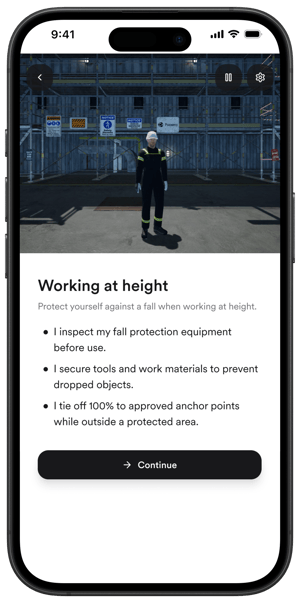
Making decisions
As the scenario plays:
-
Watch the scene at the top.
-
Read the question or instructions under the video.
-
Tap one of the action/answer buttons underneath.
- Scroll down if you don’t see all options.
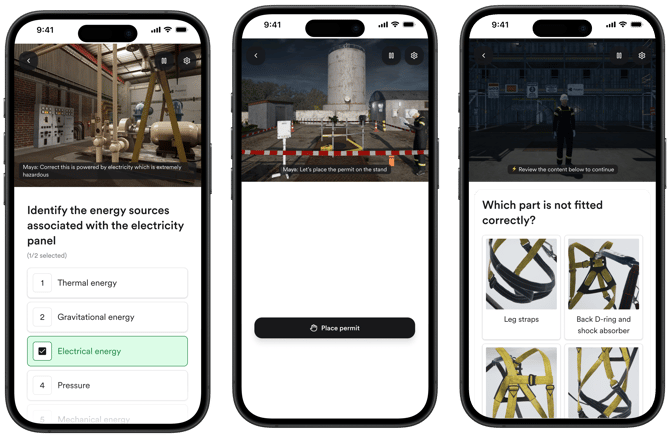
On mobile, you do not tap inside the video to interact with the scenario. You always use the buttons below the video.
Using Stop Work
- The Stop Work control is always visible on screen.
- Tap Stop Work to intervene if something in the scenario looks unsafe.
.png?width=300&height=604&name=Group%203%20(1).png)
4. Finish and view your results
When you reach the end of the module, a feedback screen will appear.
- You can rate the training (1-5 stars).
- You can add a comment in the text box.
.png?width=670&height=439&name=Group%207%20(1).png)
Why your feedback matters:
-
It helps your company and Pixaera improve the training so it feels more realistic and relevant to your work.
-
It shows whether the content, examples, and scenarios match your real tasks.
-
It highlights if anything was unclear, missing, or confusing, so it can be fixed for future learners.
Even a short comment (“Too long”, “Great example for scaffolding”, “More detail on permits needed”) is useful.
After submitting feedback, you’ll see a results screen for that module.
Here you can:
- Review all decisions
-
Open All decisions to see every choice you made.
-
Correct and incorrect answers are highlighted in green and red accordingly.
-
- See Stop Work interventions
- Check where you correctly used Stop Work.
- See any moments where you missed a Stop Work opportunity.
- This helps you understand how well you’re spotting unsafe situations.
-
Check your retention score
This reflects how well you kept key information through the module.
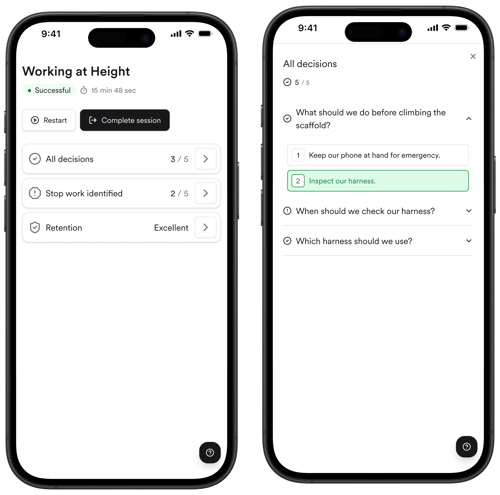
When you’re done reviewing your results, tap Complete session.
You’ll return to your Pixaera dashboard, where you can:
- See the module marked as Completed, and
- Start any other assigned training.
For some training assignment, your company may enable certificates:
- If a certificate is available, you’ll see a Certificate button on your dashboard.
- Tap Certificate to download it.
- You can use this as proof of completion for your supervisor, site access, or audits.
.png?width=300&height=604&name=Group%209%20(1).png)
Your results and completion status are saved automatically. You can close the browser once you’re back on the dashboard.