.png?width=256&height=60&name=Logo%20(1).png)
Welcome to Pixaera! Your dashboard is where you’ll find everything you need to complete and track your safety training. This guide will help you get set up and understand what you’ll see once you log in.
How to log in
From your email, open the invitation to activate your Pixaera account.
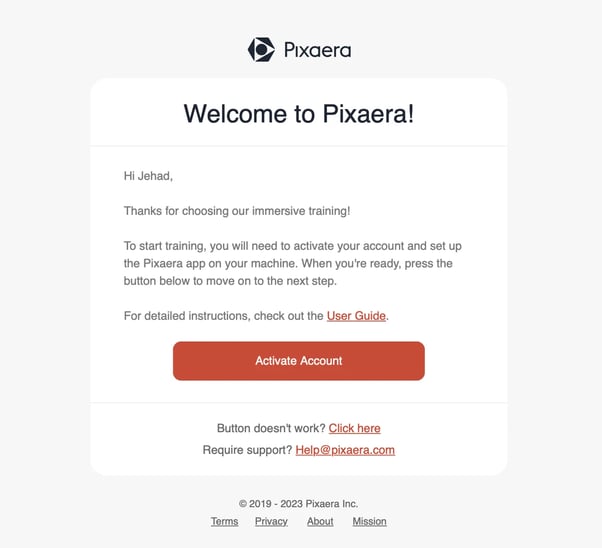
- Sign up with your company email or SSO credentials.
- If your account is already activated, access the web app at app.pixaera.com.
You may receive another email when your supervisor assigns you training modules.
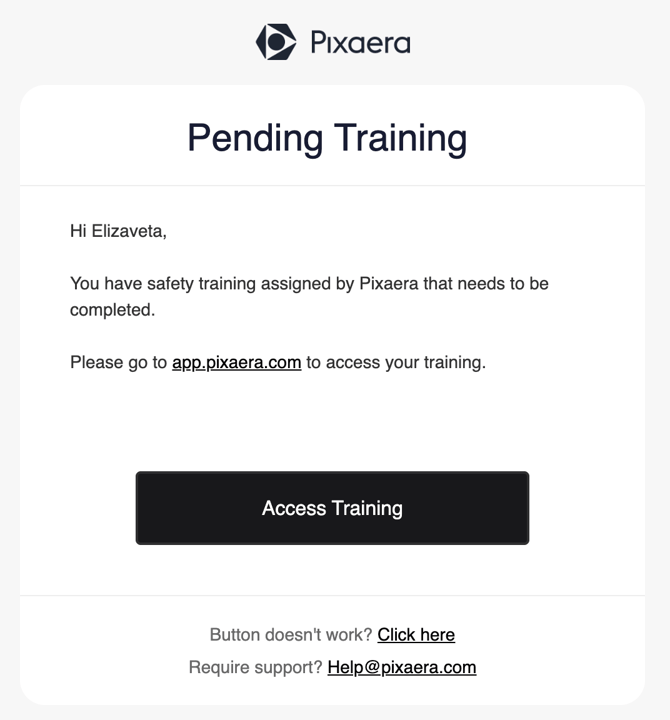
Click Access Training in that email to jump directly into Pixaera. Follow the steps to log in or sign up.
Inside your dashboard
Once you log in, you’ll see two main tabs:
-
My Training → Your assigned or available training modules.
-
VR Access → Launching training in virtual reality (relevant if your crew is taking VR training).
For VR training guidelines, please see this guide.
Training modules and progress
The training modules you see depends on assignments set by your supervisor/manager.
-
If no specific modules are assigned, you’ll see the full library of available training.
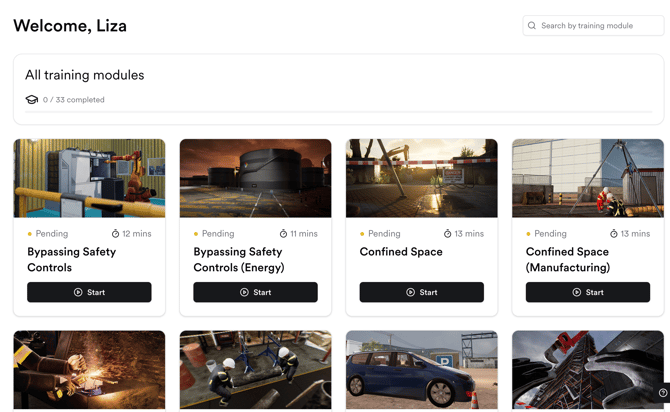
If your supervisor/manager has assigned you to a Group/Site/Region and enabled specific training requirements, you will see only training modules relevant to you.
%20(1).png?width=670&height=847&name=dashboard%20(1)%20(1).png)
If you’re assigned to multiple sites, groups, or regions, you’ll see modules and progress tracked separately for each assignment.
%20(1).png?width=670&height=1119&name=dashboard%20(2)%20(1).png)
Completing training
-
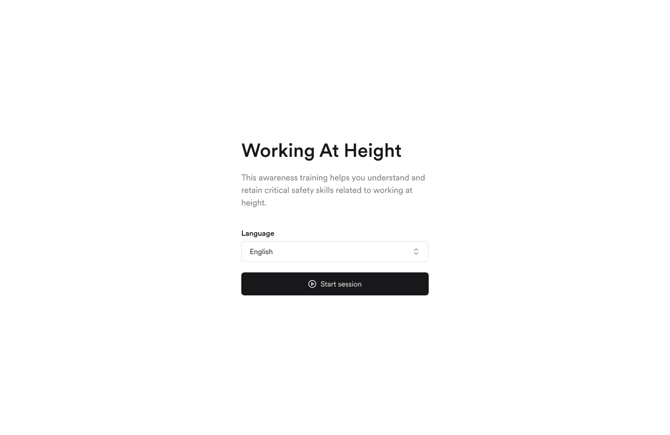
To start a module in your browser, click the Start button.
-
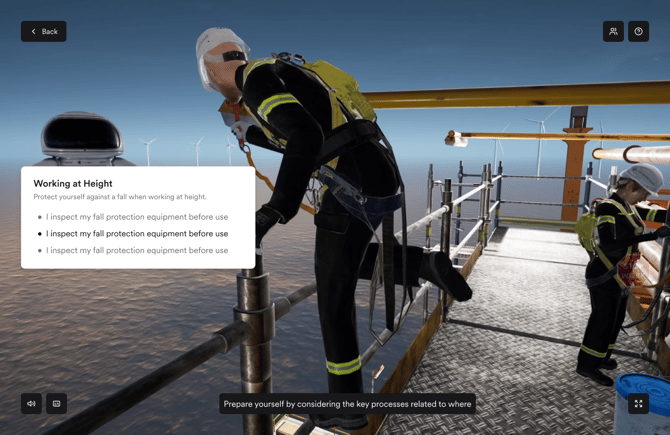
You’ll enter an immersive scenario where you’ll need to make real-time decisions.
-
Follow the voiceover instructions to complete the training safely and correctly.
After completing a module
-
Rate your experience: Once a module is finished, you’ll be asked to rate your training. Your feedback will be shared with your supervisor/manager.
.png?width=670&height=436&name=desktop%20(1).png)
-
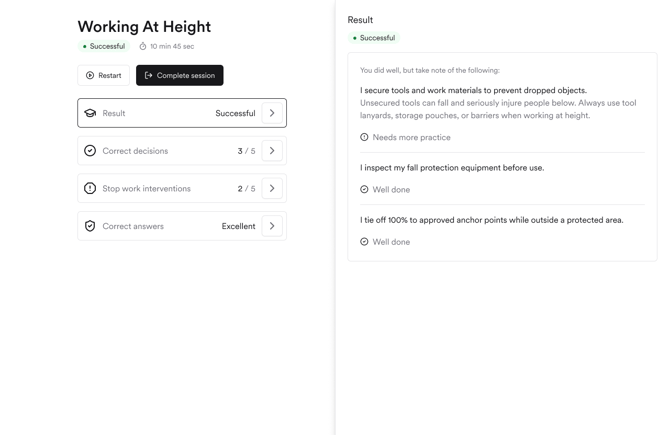
Review your results: You can see your completion score, and dive deeper into which answers were correct or incorrect.
-
Track your progress: Your dashboard updates automatically, so you always know what’s left to complete.
Certificates of Completion
-
Once you finish all assigned modules, you’ll be able to download your Certificate of Completion from the dashboard.
.png?width=670&height=436&name=dashboard%20(6).png)
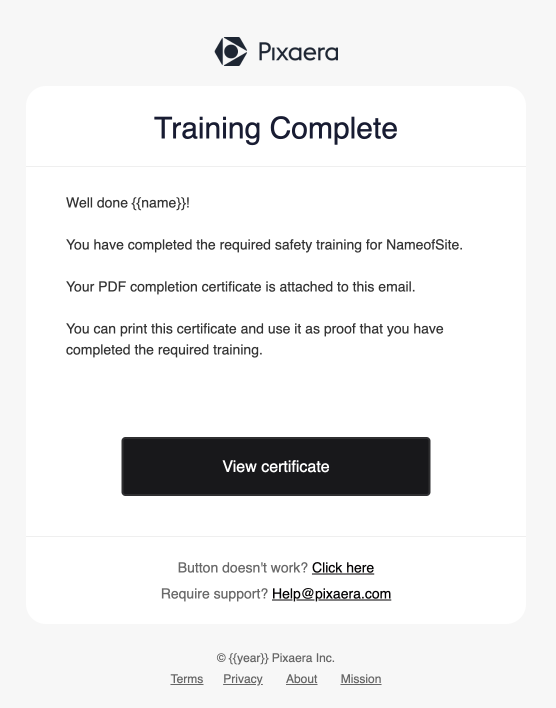
The certificate will also be sent to you via email once all required training is complete.
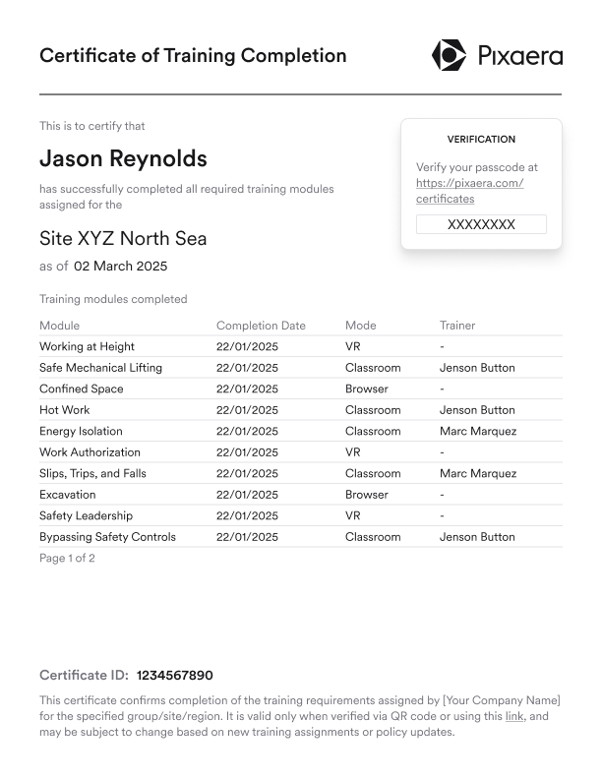
Here’s a PDF certificate example:
Mobile access
-
The same training experience is available on your mobile device.
-
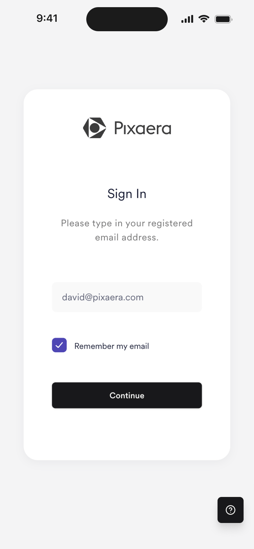
Open the Pixaera email or go directly to app.pixaera.com from your phone’s browser.
-
Training, progress tracking, results review, and certificates all work seamlessly on mobile.
-
Just make sure you have a stable connection and enough battery before starting a module.
.png?width=254&height=550&name=mobile%20(3).png)
✅ That’s it! You’re ready to explore your dashboard and start learning.
Tips & best practices
-
Use Chrome or Edge for the best experience when training in the browser.
-
Check your internet connection before starting — modules work best on a stable connection.
-
Wear headphones to clearly hear the voiceover and focus on the scenario.
-
Take breaks if completing several modules in one session — this helps with focus and retention.
-
Review your results after each module to learn from mistakes and strengthen your knowledge.
-
Complete modules early before deadlines to avoid last-minute stress.