.png?width=256&height=60&name=Logo%20(1).png)
Pixaera’s Reports provide real-time analytics that turn training data into actionable insights. Whether you're tracking completions, identifying gaps, or comparing performance across teams, the dashboard makes it easy to evaluate and optimize your training program.
There are two report types in Pixaera:
- Activity: Who is training, how often, and on what?
- Performance: How well are people performing, and where are the knowledge gaps?
In this article, we're exploring the Performance report. For the Activity report, please navigate to this article.
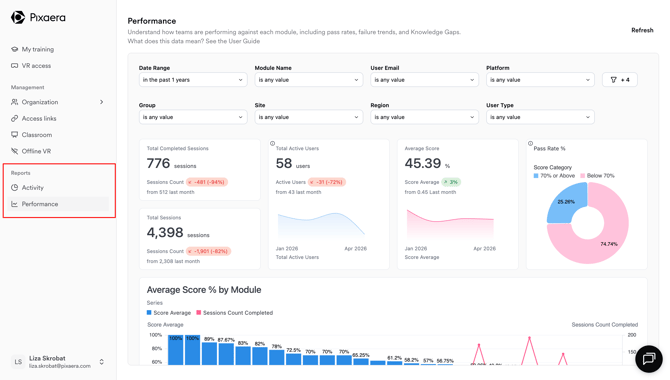
Performance report
While the Activity Report tells you who is training and how much, the Performance Report tells you how well they're learning — and where the gaps are.
Step 1: Set Your Filters
Before reading any data, configure your filters at the top of the page. This scopes everything you see below to the right audience and timeframe.
Available filters:
- Date Range — Scope your analysis to a specific period
- Module Name — Focus on a single module's performance data
- User Email — Drill into an individual learner's results
- Platform — Compare performance across VR, Desktop, Advanced Streaming, etc.
- Group — Analyze a specific team or contractor cohort
- Site — Assess performance at a specific worksite
- Region — View regional performance comparisons
- User Type — Filter by Classroom Host or Learner
💡 Pro tip: Filter by Group and a high-risk Module Name (e.g., "Confined Space") to quickly assess whether a specific team has the knowledge needed to work safely in that environment.
Step 2: Read the Summary KPI Cards
At the top of the report, four headline metrics give you an instant snapshot of your training program's health.
✅ Total completed sessions
What it shows: The number of sessions where a user fully completed a module.
- Example: 221 sessions completed — up 77 (107%) from last month.
- Why it matters: This is your primary measure of training output. A rising number means your rollout is gaining momentum.
👥 Total Active Users
The number of unique users with session activity in the selected period. At 47 users, you can quickly calculate per-user averages.
📈 Average Score
What it shows: The mean score across all completed sessions.
- Example: 42.5% — up 50% from 0.43 last month.
- Why it matters: This is your headline measure of knowledge retention. A low average score — especially on safety-critical content — is an urgent signal requiring intervention.
- Benchmark context: Scores below 70% may indicate that users are not yet ready to safely perform the tasks covered in the module.
🎯 Pass Rate %
What it shows: The percentage of sessions where users scored 70% or above (the pass threshold).
- Example: 42.53% passed (scored 70%+) vs. 57.47% below 70%
- Why it matters: If more than half your sessions result in a fail, your workforce may be under-prepared for real-world safety scenarios. This is a primary metric to track and improve over time.
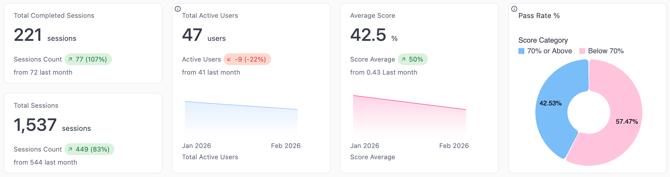
⚠️ Important: A pass rate below 50% should trigger an immediate review of training delivery, module difficulty calibration, and whether users have enough context before attempting modules.
Step 3: Read the Average Score % by Module Chart
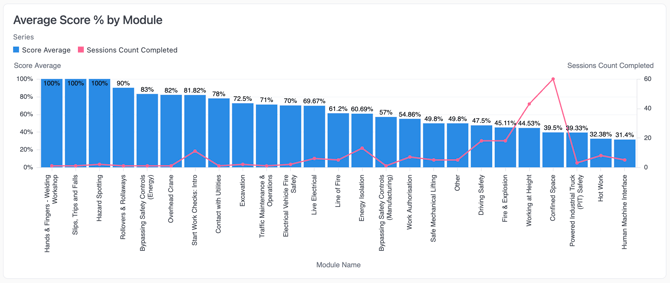
This bar chart is one of the most important views in the entire platform.
What it shows: The average score per module, with a secondary line showing how many sessions were completed per module.
How to read it:
- Tall blue bars = high average scores on that module
- Short blue bars = low average scores — knowledge gap alert
- The pink line = volume of sessions completed (helps contextualize whether low scores reflect a small sample or a systemic issue)
What to look for:
- Modules scoring above 80% are well understood — consider whether they need recalibration or if they're appropriately rigorous.
- Modules scoring below 50% require immediate attention — review module relevance, delivery format, and whether pre-training preparation is adequate.
- High session count + low score = a widespread comprehension problem, not an outlier.
Example action: If "Confined Space" shows a 39% average across 40 sessions, that module should be flagged for additional coaching, or mandatory retakes.
Step 4: Investigate Knowledge Gaps
The Knowledge Gaps table is one of Pixaera's most powerful features for evaluating training effectiveness.
What it shows: Every question in your training modules is mapped to a Life Saving Action — a specific safety behavior. This table reveals which questions users are getting wrong, and therefore which life-saving actions are not yet internalized.
| Column | What is means |
|---|---|
| Module Name | Which module the question belongs to |
| Life Saving Action | The real-world safety behavior this question is testing |
| Question Text |
The exact question users answered |
| Is Correct % | The percentage of users who answered correctly |
How to use it:
- Sort by Is Correct % (ascending) to surface the most critical gaps — questions with 0% correct rates mean no one in your workforce got that question right.
- Map low-scoring questions to their Life Saving Action to understand the real-world risk of the knowledge gap.
- Use this to prioritize refresher training, coaching conversations, or toolbox talks on specific topics.
Example insight:
- "What should you do with the gas detector during a confined space entry?" — 25% correct. This means 75% of users may not know a critical pre-entry safety check. This is an actionable, high-priority gap.
- "Should you bypass an alarm when it goes off?" — 0% correct. This needs immediate intervention.
💡 Use case: Share the Knowledge Gaps table with site supervisors or safety officers to inform pre-shift briefings. Focus on the specific Life Saving Actions where knowledge is weakest.
Step 5: Review Intervention Stats
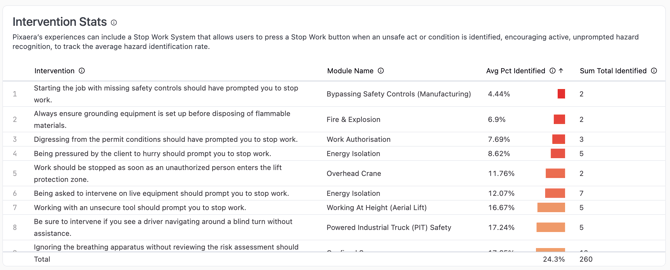
What it shows: Pixaera modules include a Stop Work System — users can press a Stop Work button when they identify an unsafe condition. The Intervention Stats table tracks how often this is used and which scenarios prompt it.
|
Column |
What it means |
|---|---|
| Intervention | The unsafe scenario presented in the simulation |
| Module Name |
Which module it appeared in |
| Avg Pct Identified | The average percentage of users who correctly identified and stopped work |
| Sum Total Identified | Total count of correct stop-work actions taken |
How to use it:
- Low Avg Pct Identified means users are not stopping work in scenarios they should. This is a direct indicator of real-world risk.
- "Confined Space" showing 17.65% identification means most users did not stop work when they should have — a significant safety concern.
- High-performing scenarios can inform what types of hazard cues users are most attuned to.
⚠️ Action trigger: Any intervention with less than 20% identification rate should be flagged to your safety team and addressed through targeted coaching or module repetition.
Step 6: Analyze Improvement Insights
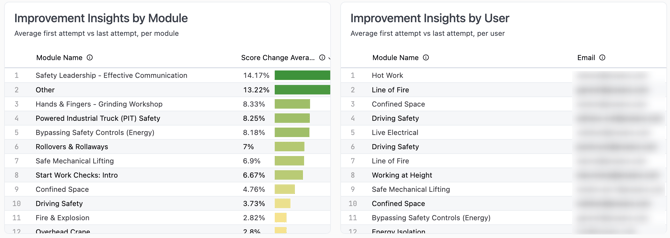
What it shows: The score improvement between a user's first attempt and their most recent attempt on each module.
Two views available:
- By Module — Which modules see the most improvement on retake?
- By User — Which individual users are improving the most (or least)?
Improvement Insights by Module — How to use it:
- A high Score Change Average (e.g., 14–19%) on a module means retaking works — the module content is well-designed for learning.
- Low improvement on retake may indicate the module is too difficult without supplementary instruction, or users are rushing through without genuine engagement.
Improvement Insights by User — How to use it:
- Users with high improvement scores are engaging genuinely with the content.
- Users with no improvement across multiple attempts may need 1:1 coaching.
- Use this alongside the Activity Report's User Feedback to build a complete picture of individual learner needs.
Step 7: Review Group, Site & Region Performance
Three side-by-side tables let you benchmark performance across your organizational structure.
Group Performance:
| Column | What to look for |
|---|---|
| Score Average | Is any group significantly below the overall average? |
| Complete Sessions | High sessions + low scores = engagement without comprehension |
| User Count | Small groups with low scores may need targeted support |
Site Performance:
- Compare average scores across worksites.
- A site with consistently low scores may reflect a local training culture issue, or that site-specific conditions aren't being addressed in training.
Region Performance:
- Useful for national or global rollouts.
- Regional score disparities may reflect language barriers, different delivery formats, or varying levels of manager support.
Step 8: Understand Average Module Attempts
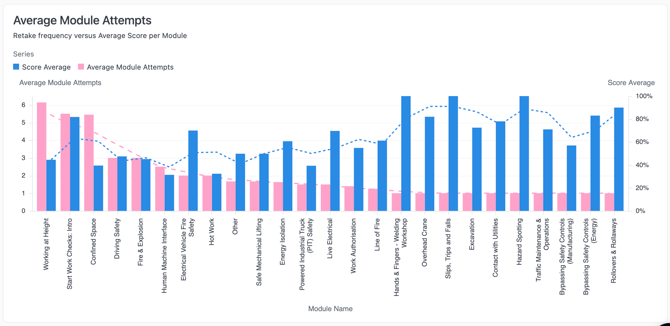
The Average Module Attempts chart at the bottom plots two data points per module:
- Score Average (line) — The average score achieved
- Average Module Attempts (bars) — How many times users are attempting each module on average
How to read it:
- High attempts + low score = users are struggling and not improving — escalate to targeted intervention.
- High attempts + high score = users may be retaking to improve mastery — this is positive engagement.
- Low attempts + low score = users aren't retaking modules they failed — consider making retakes mandatory for modules below the pass threshold.
How to use the Performance report effectively
| Goal | What to look at |
|---|---|
| Assess workforce safety readiness | Average Score + Pass Rate % |
| Find the most dangerous knowledge gaps | Knowledge Gaps table (sorted by Is Correct % asc.) |
| Identify who needs extra support | Improvement Insights by User + low scores in Completion Table |
| Benchmark teams against each other | Group Performance table |
| Prove training effectiveness over time | Score trend in KPI cards month-over-month |
| Understand hazard identification ability | Intervention Stats (Avg Pct Identified) |
| Prioritize which modules to improve | Average Score % by Module chart |
| Justify program investment | Pass Rate improvement + Knowledge Gap closure over time |
How Activity + Performance Work Together
The two reports are most powerful when used in tandem:
| Activity Report says... | Performance Report adds... |
|---|---|
| 1,537 sessions started | But only 42.5% average score — volume isn't enough |
| 47 active users | Which of those users are actually passing? |
| High completions on Confined Space | But intervention identification is at 17% — concern |
| 5-star ratings on a module | Cross-check with scores — high enjoyment ≠ high retention |
Next: Read the Activity Report Guide to understand how to track reach and engagement