.png?width=256&height=60&name=Logo%20(1).png)
To run a session with Live Participation, follow these steps.
Before you start
You'll need a few things in place:
- Classroom must be enabled for your company. If you don't see it, ask your Pixaera representative who can walk you through the process..
- Everyone needs a phone, tablet or computer with a browser and an internet connection. There's no app to install and no account to create.
- Phones/computers need to be allowed in the room, with wifi or mobile data available.
Participants won't hear the narration on their devices. All sound comes from the room, so keep your speakers on and everyone facing the screen.
1. Create a classroom session with Live Participation
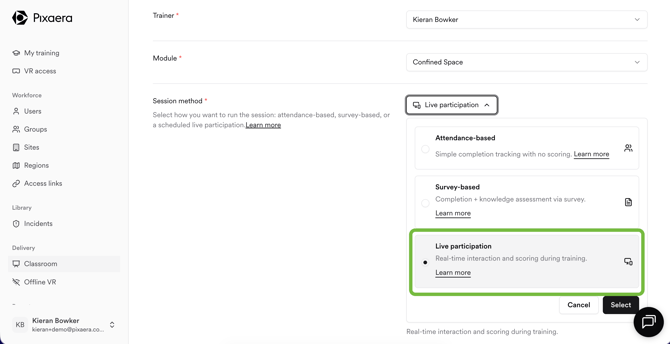
Go to Delivery → Classroom and create a new session. When you choose your module and settings, select Live Participation. Everything else about the session works the way it always has.
2. Add your participants
Add the people who'll be in the room. You can add them one at a time, upload a list, or add the same people to several sessions at once.
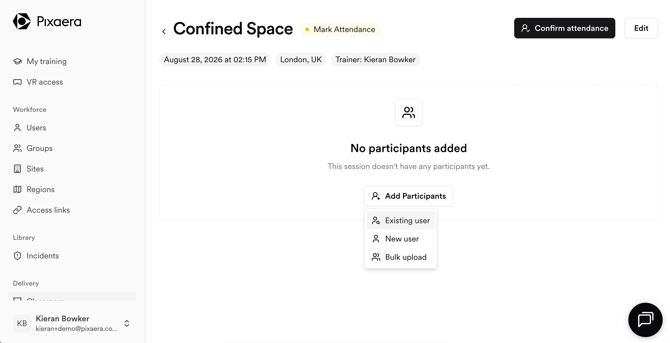
Anyone you add here will see their own name to pick from when they join, so it's worth getting the spelling right.
3. Confirm attendance
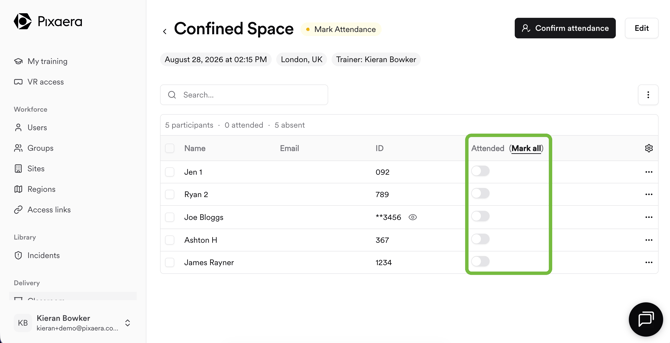
Mark who actually turned up. This is the list your participants will choose their name from.
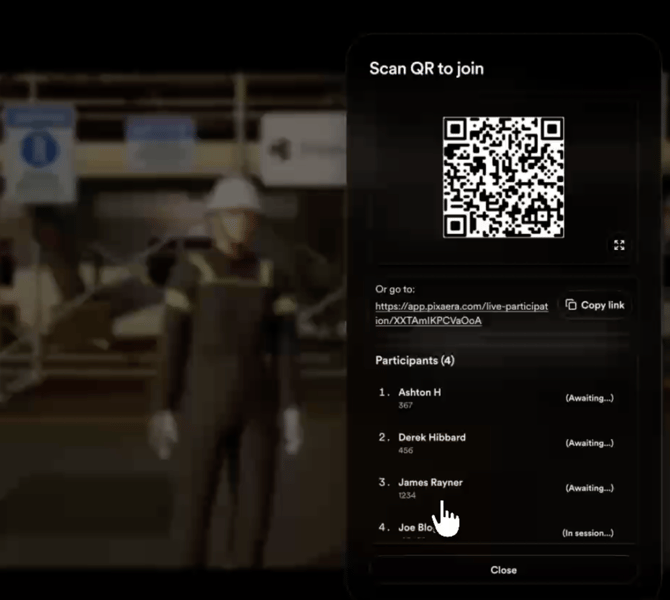
4. Share the QR code
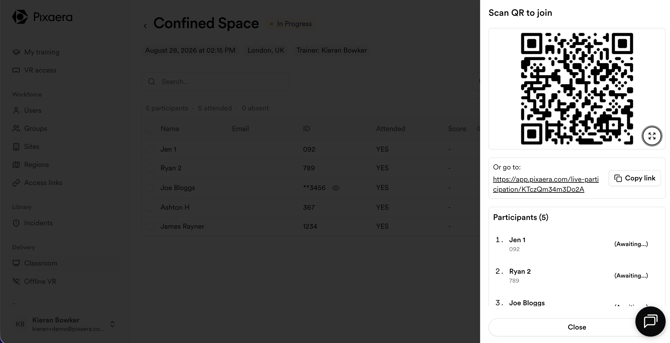
Select Join. A QR code appears on the big screen. Everyone scans it with their phone camera, finds their name in the list, and confirms it. If someone picks the wrong name, they can go back and choose again
You can also use a link instead of a QR code if learners are joining on their computers.
5. Start the module
Select Start. The module plays on the big screen with Maya narrating as usual. While there's nothing to answer, participants see a short "please wait" message on their devices.

6. Take the vote
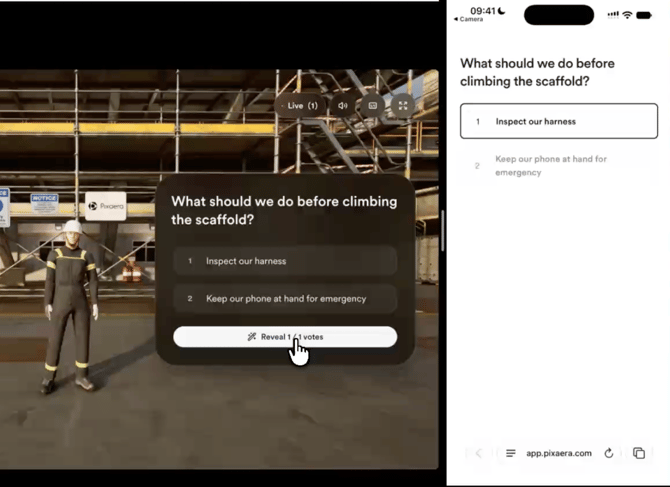
When the module reaches a question, it appears on the big screen and on every phone at the same time. Your own options stay locked while the room votes, so nobody is influenced by what you pick. You can see how many votes are in as they arrive.
7. Reveal the votes
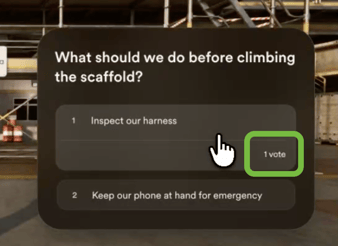
Select Reveal. The totals appear on the big screen. This is your moment to open it up: ask the room why they chose what they chose before anything is confirmed.
8. Choose the answer
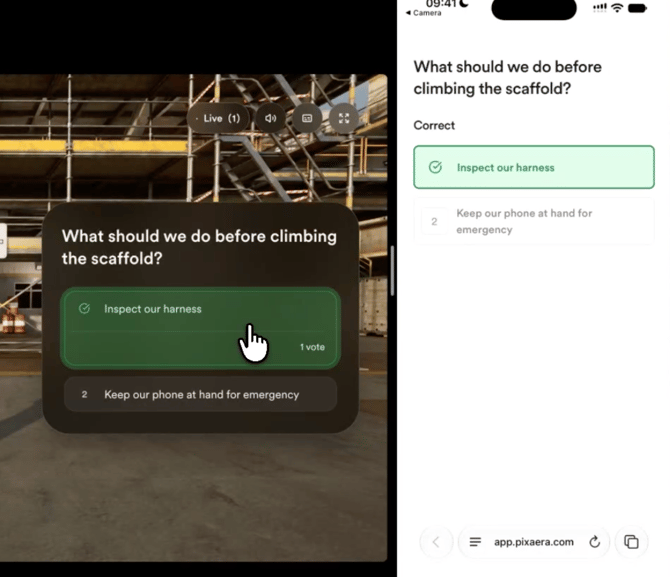
Select the option on the big screen. Feedback plays as normal and the module carries on to the next scene. Repeat from step 6 for each question in the module.
9. Add someone who arrives late
Select Join again at any point during the session and show the QR code. Latecomers can scan, pick their name, and join from wherever the module has got to.
10. Finish and review together
At the end, each participant sees their own answers on their device, and the big screen shows how the room did overall. Use it as a debrief — if a particular question tripped a lot of people up, that's the one worth talking through. From here you can reschedule anyone who needs another session.
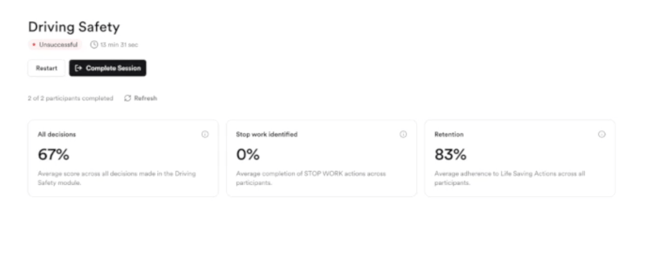
Reusing a session for practice
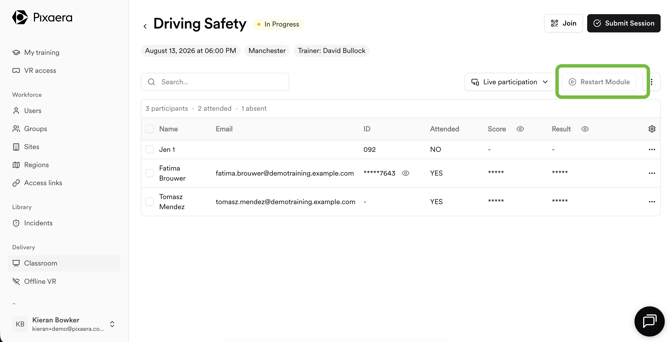
Select Restart to take the session back to the beginning. Results already saved won't be affected, so you can run the same session as many times as you like while you get comfortable with it. Just don't select Complete session until you're ready to submit the results for reporting.