.png?width=256&height=60&name=Logo%20(1).png)
Training access links make it easy for admins to invite workers — both internal teams and contractors — to self-enroll in Pixaera training.
When a user signs up through an access link, they are automatically allocated to a predefined group, site, or region, streamlining onboarding and ensuring the right training assignments from day one.
Admin experience
Step 1: Create an Access Link
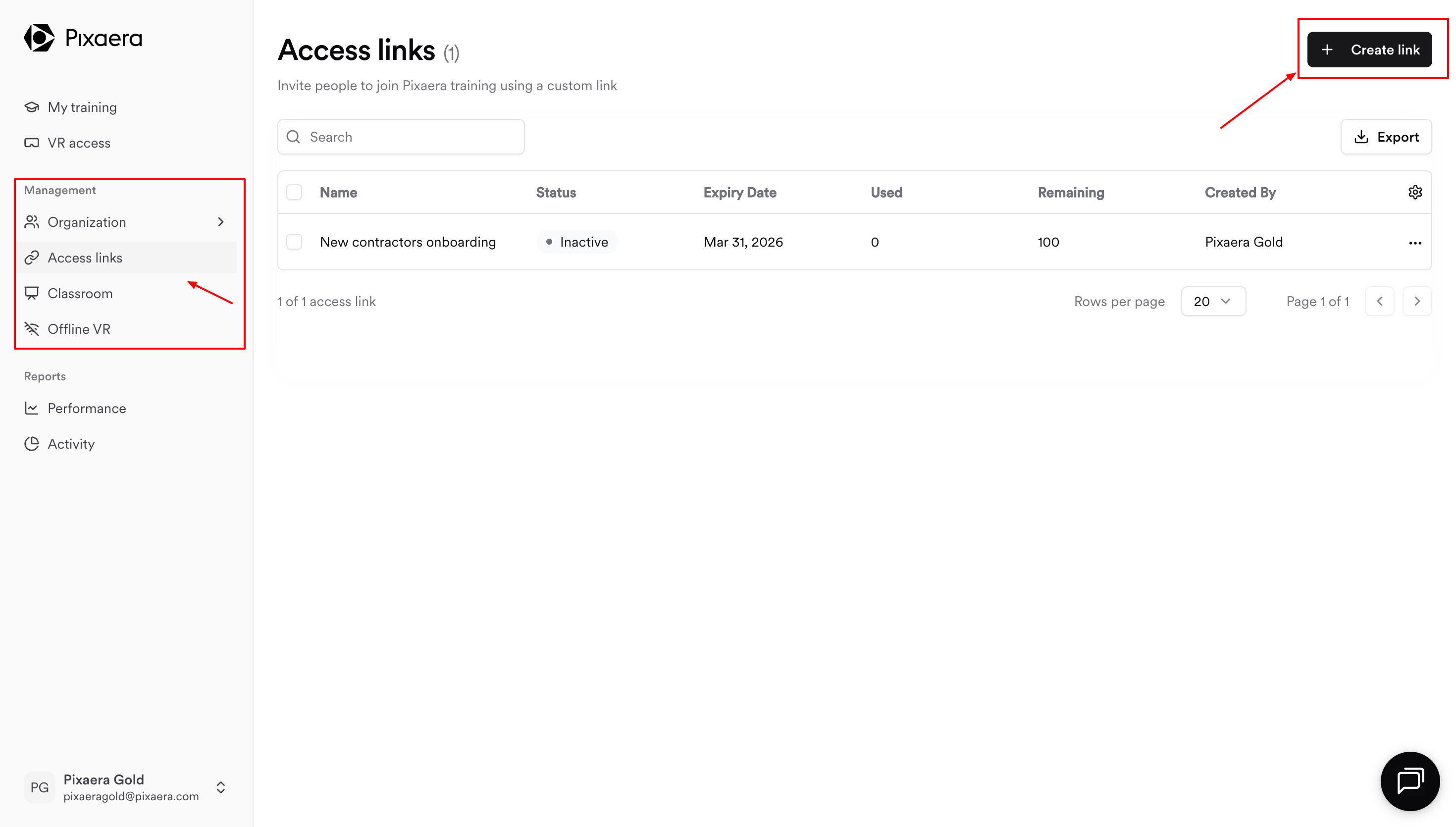
- From the sidebar, click on Access Links tab, then on Create link button
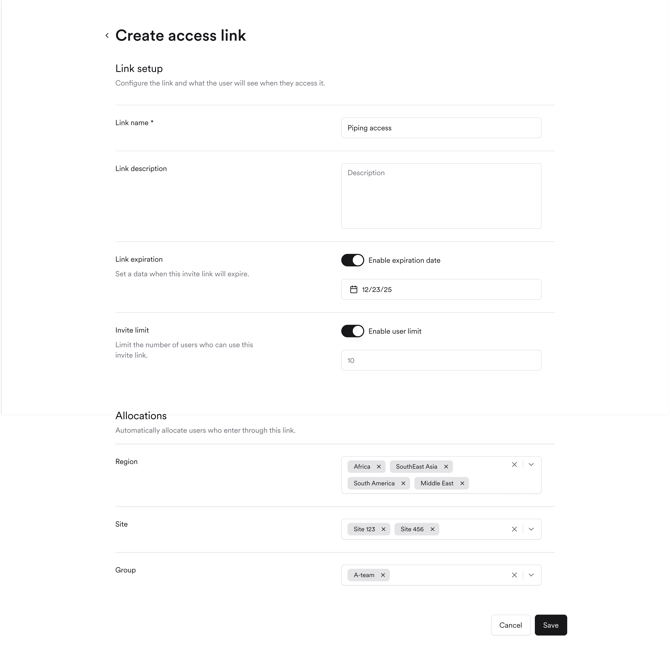
- Configure the link by:
- Naming it and adding a description — helpful for tracking and reporting.
- Setting an expiration date (optional) — automatically disables the link after a certain date.
- Enabling an enrollment cap (optional) — limit the number of users who can use it.
- Defining auto-allocation settings: specify which group, site, or region users should join automatically when signing up via this link.
(You can combine these settings, e.g., assign both a site and a group.)
Once saved, the link can be edited, deactivated, or monitored.
Step 2: Manage & monitor your links
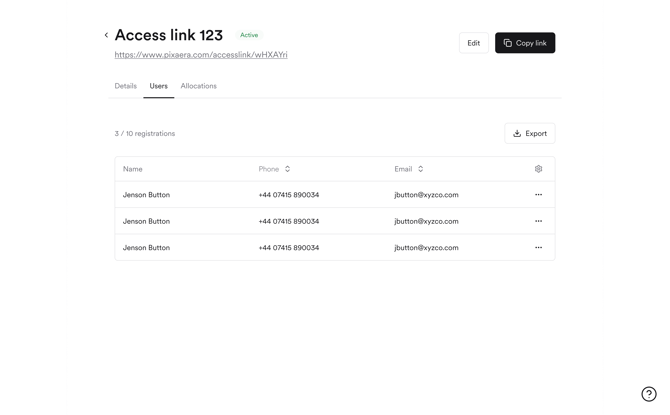
In the dashboard, you can view all existing access links.

You can track usage for each link to see:
- How many users have signed up via each link
- Which users joined through each link
- Where they were allocated (group/site/region)
Learner experience (via email or phone)
- A worker receives the access link from their manager, eg:
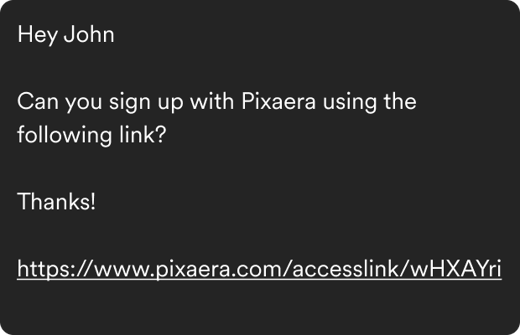
- They click the link to sign up or sign in to Pixaera using email or phone method.
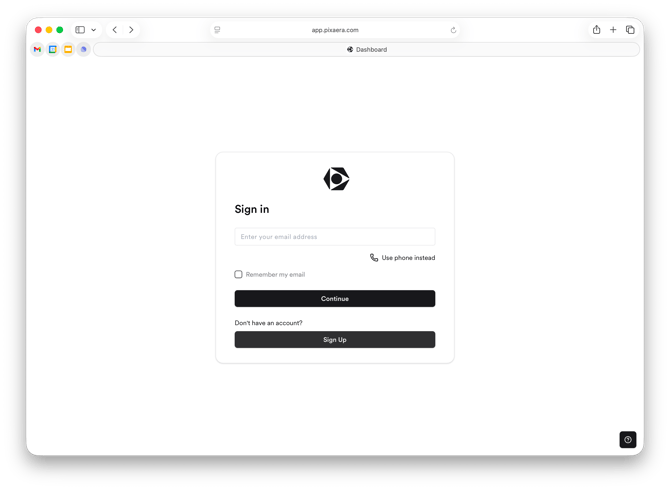
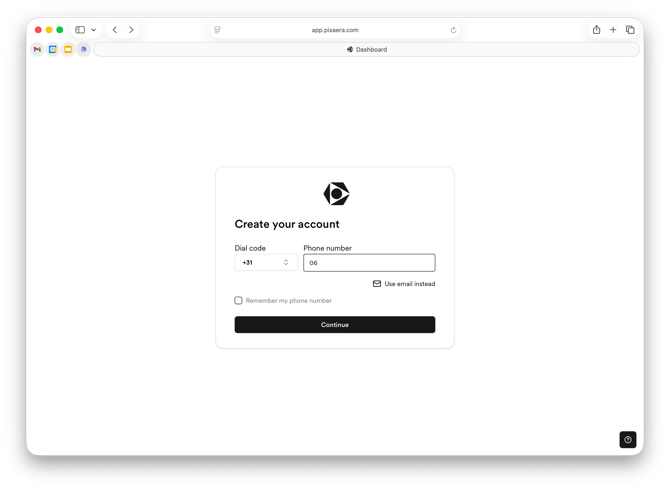
💡If a user already has a Pixaera account associated with their email or phone number (eg. their manager created it before), the system will prompt them to login using their password. Password can be reset, if forgotten.
If a user doesn't have a Pixaera account, the system will create it using either email address or phone number as a unique identifier. The user will be prompted to input their first and last name and create a password to sign up.
- Upon login, they are automatically allocated to the predefined group, site, or region.
- They immediately see any assigned training modules in their dashboard.
.png?width=470&height=470&name=Group%2013%20(2).png)
💡 Access Links work as a training access method both for users with and without a corporate email address. External personnel can self-enroll using their phone number or a personal email address.
Why use Access Links
- Faster onboarding — no manual user creation needed.
- Accurate allocation — ensures workers are placed in the correct training group instantly.
- Scalable invitations — perfect for rolling out training to large contractor teams or new site hires.
- Trackable sign-ups — see exactly who joined and through which link.
Pro tips
- Create separate links for each site or contractor group to simplify reporting.
- Use the description field to include context, e.g., “Site A – Safety Induction – August 2025.”
- Set an expiration date to prevent outdated links from being reused.