.png?width=256&height=60&name=Logo%20(1).png)
In this guide, we explain how admins and managers can get a complete view of each user’s training data and account details in one place — review key information about a user, edit essential details, and take actions such as sending reminders, issuing certificates, or assigning training.
How to access user records
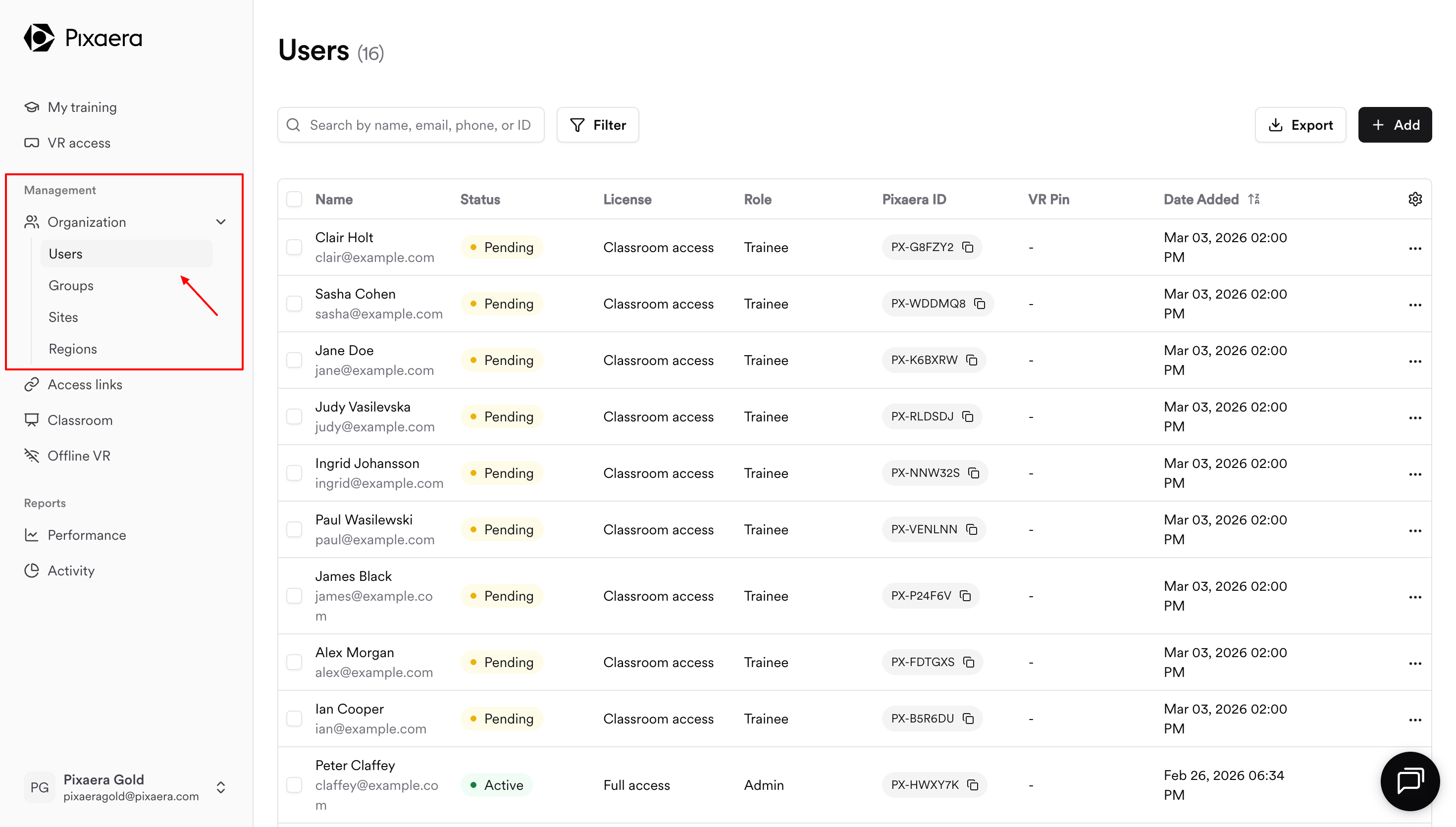
Via the Organization tab
In your Pixaera dashboard, click on the Organization tab. From the dropdown, navigate to the Users tab and click on any user profile.
Via the Classroom tab
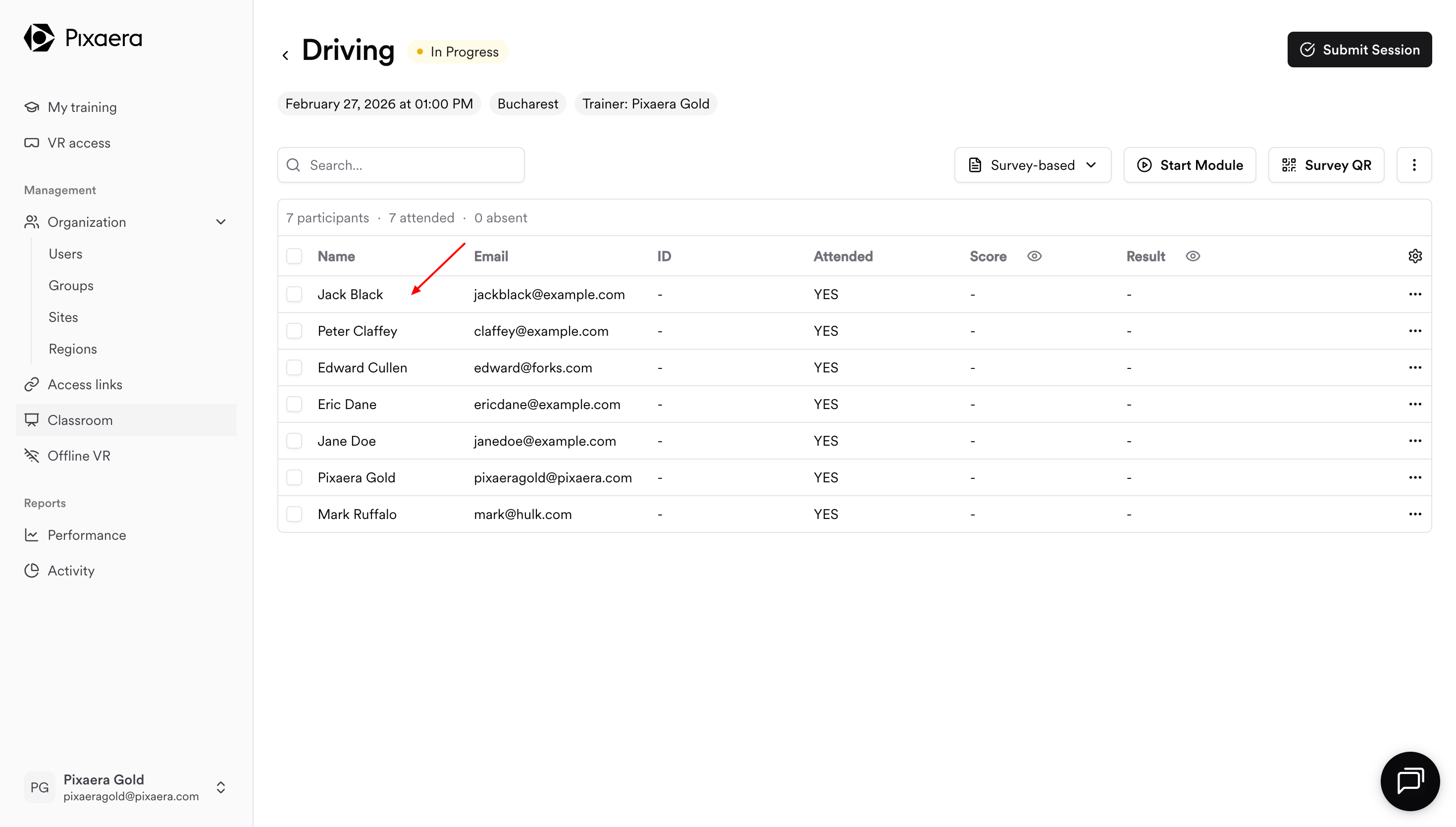
From your dashboard, navigate to the Classroom tab.
- Click on the Classroom session;
- You will see a list of participants — click on any of them to access the user records.
What you can see in the user profile
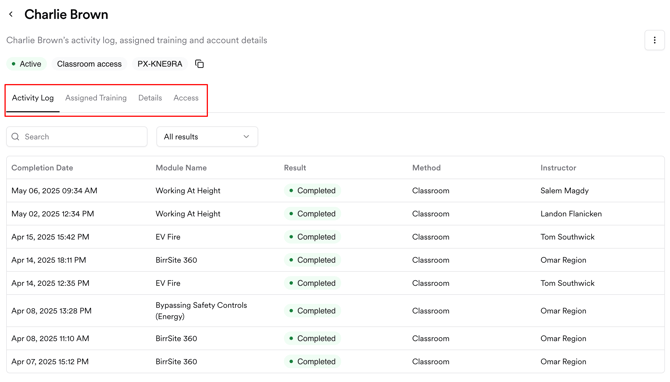
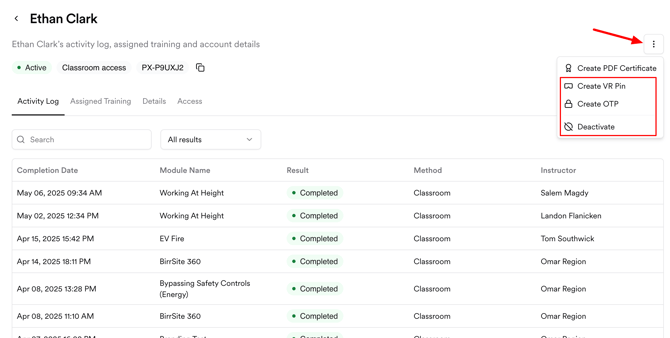
Each user profile contains of four tabs:
-
Activity log → View user's training full history, with details into when and how.
-
Assigned training → Check completed, expired and pending training assignments.
-
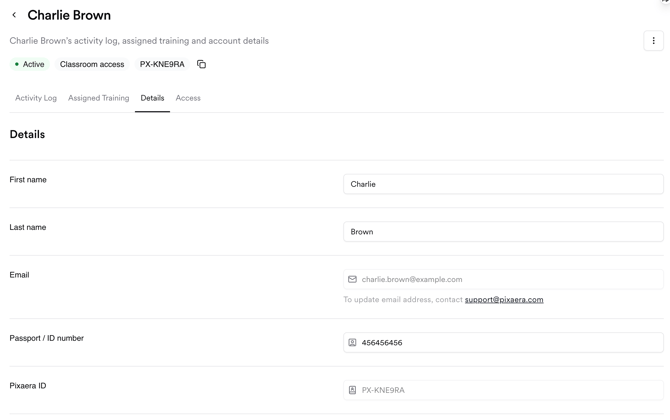
Details → Review and update user information.
-
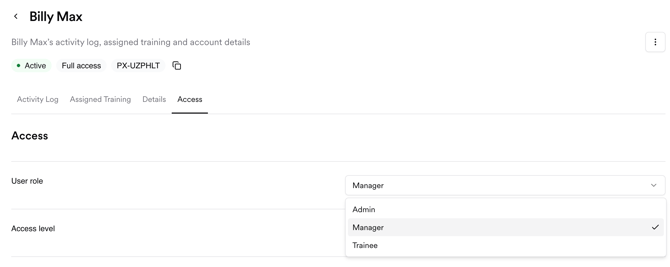
Access → See and edit the user’s role and permission level.
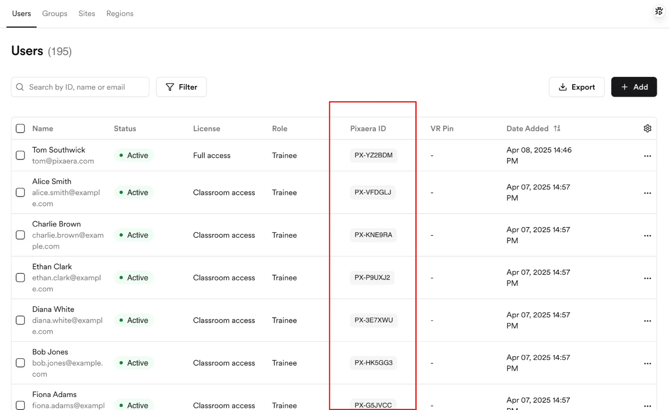
You can also view and copy a Pixaera ID — a unique ID automatically created at signup or by an admin.
What you can do in users profile
From the profile view, you can:
Manage training & compliance
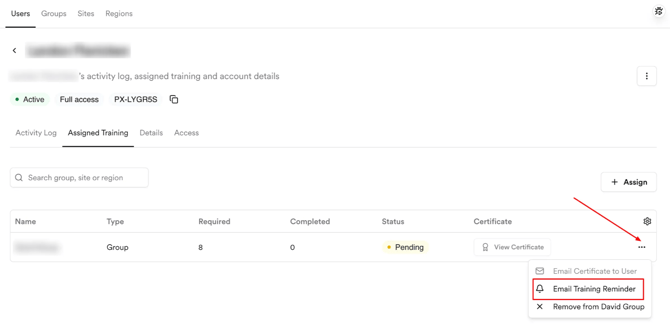
- Send training reminders → Email reminders for pending modules.
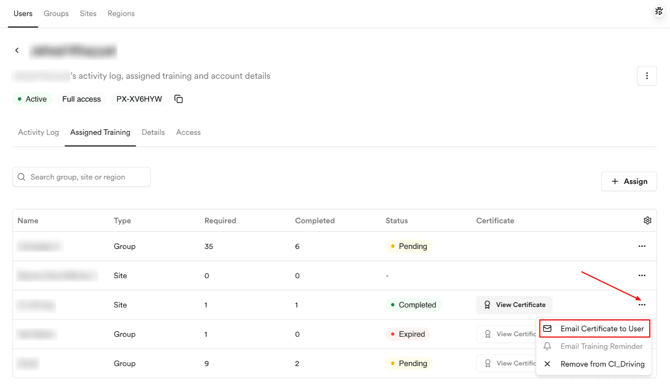
- Trigger certificate issuance → Send a certificate by email for completed training.
- Assign training → Add required training to a user by Group, Site, or Region with one click.

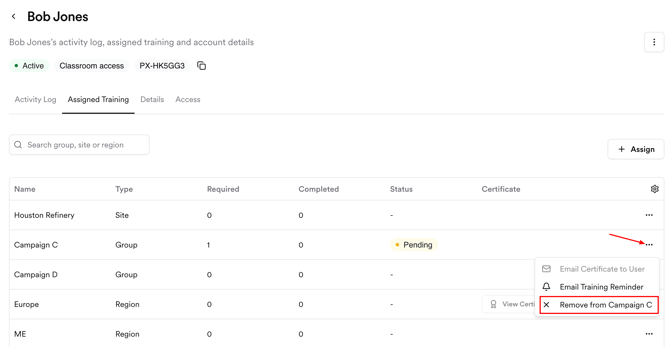
- Remove from assignment → Delete a user from the Group/Site/Region they're assigned to.
-
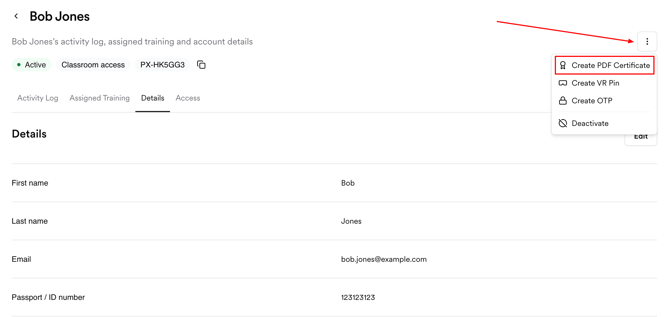
Create a PDF certificate → Downloadable proof of completion for audits.
- View & print a Pixaera badge → a unique exportable and printable badge containing key user info.
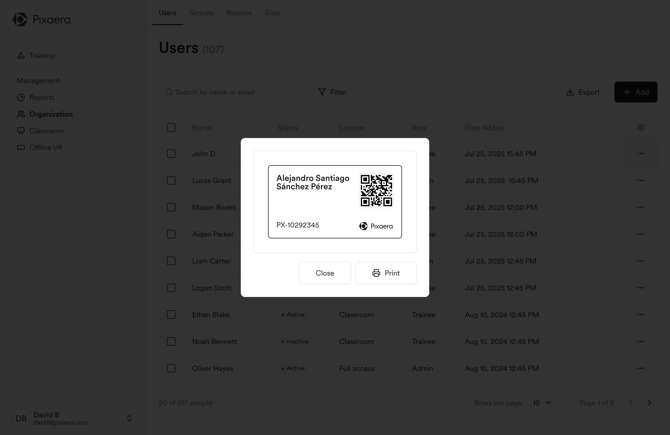
Once printed, the badge can be stitched onto PPE, providing a seamless identity verification onsite.
Manage access & recognition
-
Edit user information → Update personal details.
-
Change user role → Adjust access permissions as responsibilities shift.
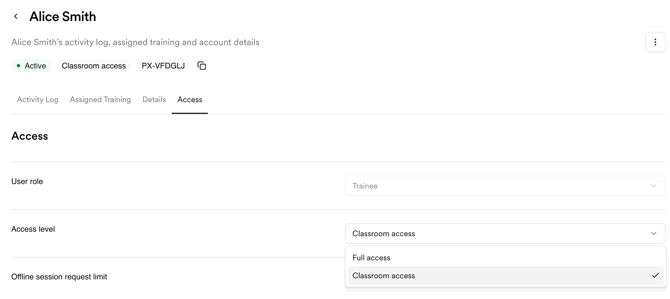
- Change access level → Switch between:
- Full Access → Trainees can access all training content.
- Classroom Only → Trainees can only access classroom-based training.
-
Generate a VR Pin → Create a VR login credential for immersive training.
-
Generate a One-Time Password (OTP) → For secure login access when needed.
- Deactivate a user → Remove access when someone leaves or no longer requires training.
Best practices
-
Use reminders proactively → Check pending training often and send reminders before deadlines.
-
Store certificates smartly → Download PDF certificates for audits; send email certificates to learners for recognition.
-
Assign in bulk → Save time by assigning training by Group, Site, or Region instead of one by one.
-
Set the right access → Use Full Access for broad training needs, and Classroom Only for limited roles.
-
Keep data current → Update roles, details, and permissions regularly to ensure accurate oversight.