.png?width=256&height=60&name=Logo%20(1).png)
Pixaera’s Offline Mode allows you to run VR training sessions without an internet connection — ideal for remote sites or secure environments. This guide walks you through unlocking offline sessions and accessing offline content from start to finish.
Please note:
- You will need to make sure you have offline sessions pre-loaded on your Pixaera account. To access offline sessions, please reach out to your Pixaera Team.
- No data will be saved from any offline session. If a trainee completes a Pixaera module while offline, their data won’t synchronise with your Pixaera account and there will be no record of completion.
Prerequisites for offline training
Before you begin, make sure:
- Your headset is fully charged and connected to the internet during setup and login.
- The latest version of the Pixaera VR app is installed.
- You have received your offline session unlock code (and content file(s) from the Pixaera team if this is applicable, see below).
Unlocking an offline session
To begin training offline, you need to unlock the session while your headset is still online. This step registers the session and allows you to access it later without connectivity.
Steps to unlock:
- Run the App: Power on the headset and launch the Pixaera app.
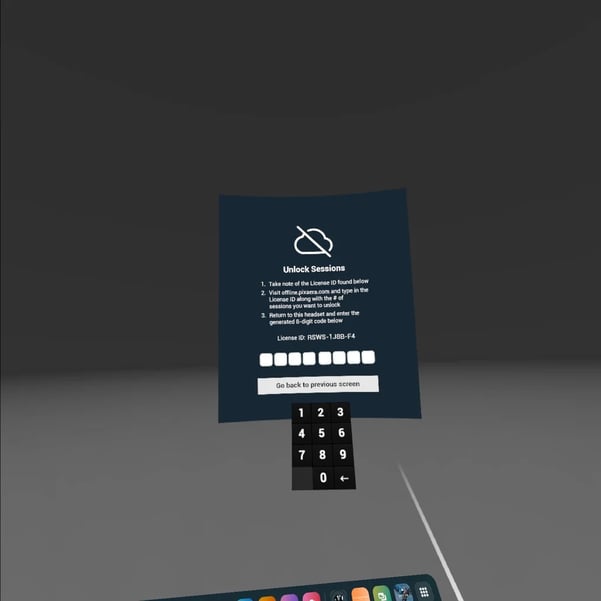
- Access Offline Mode: Inside the app, select 'Offline Mode'. The app will prompt you to download all available modules and will generate a unique 'Offline ID' linked to your device.
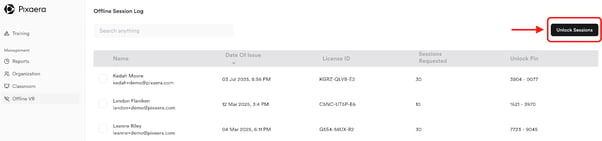
- Visit the Offline Access Page: On a web browser, go to app.pixaera.com/offline. You must log in using a Pixaera account with Manager or Admin permissions.
- Review Session Log: After logging in, you'll see a record of previously unlocked sessions. Click "Unlock Sessions" to proceed.
- Enter Offline ID: You will see a form — enter your unique Offline ID from the VR app.
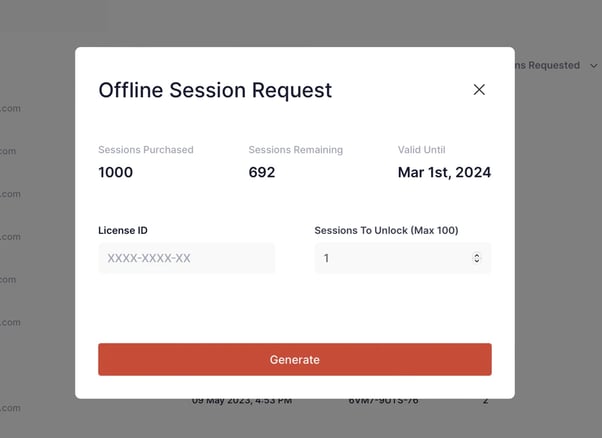
- Specify Sessions Needed: Choose how many training sessions you want to unlock and input this number.
- Generate Unlock Code: Click "Generate" to submit the request.
- Receive 8-Digit Pin: If your organization has enough sessions available, the system will return an 8-digit unlock code.
- Activate in the App: Return to the VR app and enter the 8-digit pin when prompted. This will unlock the requested number of sessions on that device.
- Use the Sessions: You can now conduct training offline. Once all unlocked sessions are used, a new Offline ID will be generated for the next unlock cycle.
- Repeat as Needed: Follow the same steps anytime additional offline sessions need to be unlocked.
You can now switch off Wi-Fi or move the headset to an offline location.
Accessing offline customizations
If your training content includes custom modules or configurations (e.g., site-specific scenarios, branded modules), follow these steps to import them into your headset.
Steps to download and verify offline customizations:
- Ensure Internet Connection: Confirm that your headset is connected to Wi-Fi.
- Generate a 6-Digit VR Pin: On a web browser, visit vr.pixaera.com and log in to your Pixaera account. Click to generate a 6-digit pin.
- Launch the App: Open the Pixaera VR app on your headset.
- Enter the Pin: At the login screen, enter the 6-digit VR pin you just generated.
- Automatic Download: The headset will begin downloading your offline customizations in the background. This usually takes just a few minutes.
Verifying customizations:
- Once the download is complete, disable Wi-Fi on your headset.
- Reopen the Pixaera VR app and select Offline Sessions.
- Launch a training module (e.g., Confined Space) and inspect the environment.
- Look for your company’s custom branding on walls, character uniforms, and helmets.
If your logos or branding are not visible:
- Reconnect to Wi-Fi and reopen the Pixaera app.
- Wait for the customization download to complete.
- Repeat the above verification steps.
Once confirmed, your branding will remain available in offline mode — even without the internet.
Manual Content Transfer (Optional):
If you've received content files directly from Pixaera:
- Connect your headset to a computer via USB-C.
- Allow file access in the headset.
- Navigate to Android/data/com.pixaera.vr/files/ on your computer.
- Copy the provided customization files into this directory.
- Safely disconnect and restart the VR app.
Repeat the process for each headset as needed.
If you have multiple headsets, repeat this process for each one.
Updating offline content
Custom content may occasionally be updated. In these cases:
- You’ll receive a new content package from Pixaera.
- Follow the same USB transfer steps to replace the old files.
- Always restart the app to ensure updates are recognized.
⚠️ Best practices
- Always test offline training on one headset before deploying across your facility.
- Keep backup copies of unlock codes and offline content files.
- Avoid factory resetting headsets unless necessary — it will erase offline content.
- Periodically connect headsets to the internet to sync usage data and check for app updates.