.png?width=256&height=60&name=Logo%20(1).png)
This guide walks you through everything you need to know to run Pixaera VR training successfully — from setting up your headset to the first time to launching modules and casting the view to a big screen.
What you'll need
To get started with VR training, ensure you have all the necessary equipment and space. Proper setup helps guarantee a smooth and safe training experience.
- Meta Quest 3 or 3S headset(s)
- Pixaera VR application installed via this link
- Stable Wi-Fi connection (unless using offline mode)
- Charging cables and optional power banks
- A clear, safe physical space for learners
- An optional screen for casting
Setting up your training facility
A well-prepared training environment is key to learner safety and immersion.
- Choose a suitable space: Pick a quiet area with minimal distractions, good lighting, and limited foot traffic.
- Define the play area: Mark out at least 1mx1m per learner using floor tape, cones, or mats. Ensure a minimum of 1m between each square to allow safe movement and supervision.
- Label and group headsets: Stick a unique dot label or colored sticker on each headset and its controllers. Use matching stickers to pair each device group with its designated training area. This prevents mix-ups and saves time when re-creating guardian/stationary boundaries. For larger setups, use multi-sticker combinations.
- Improve tracking accuracy:
- Add high-contrast decals or black tape to outline each training square.
- Place a cross or "X" inside each square to enhance visual tracking.
- Consider adding tower displays or physical markers around the perimeter. Full walls aren’t necessary — tracking can tolerate people observing from the edges.
- Minimize light interference: Avoid placing headsets near direct sunlight or strong indoor lights. If needed, use IR illuminators to enhance tracking in darker rooms.
- Optimize positioning: Place a floor marker to indicate where learners should stand. Ideally, orient them with their backs to foot traffic to prevent tracking interference.
- Remove obstacles: Clear furniture and objects from the area to prevent collisions.
- Ensure ventilation and seating: Proper airflow is important, especially during long sessions. Consider chairs for pre/post briefings.
- Optional signage: Use signs to let others know a VR session is in progress.
Logging into Pixaera VR
Each headset must be logged in to access your organization’s training modules.
Login process:
- Put on the headset and power it on.
- Find and launch the Pixaera app from the library.
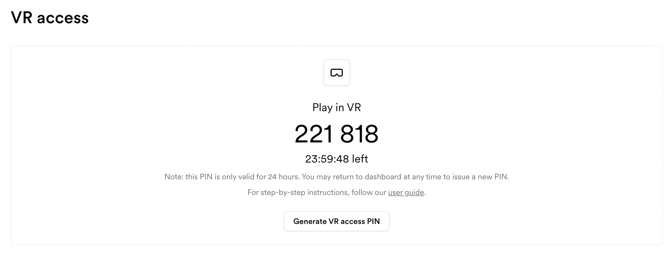
- Use your personal 6-digit pin to log into the app. If you don’t have one, please generate one by logging into app.pixaera.com:
- Navigate to the 'VR Access' tab in the side menu;
- Click on the 'Generate a new PIN' button;
- Your PIN will be instantly generated in the platform, and sent to you via email.
💡 Please note: if you are a trainer/manager setting up the VR for a trainee, please ensure you generate a VR digit pin for them from the Organization menu. This will ensure the training data is captured against the right trainee and not your own login, for example.
4. Choose your preferred language, then select ‘Continue’
5. You are then redirected to the lobby screen, hover over any module and click ‘Start’
Make sure your headset is connected to the internet during this process.
Casting VR to a screen or mobile device
Casting allows you to share what you’re seeing in VR with others around you. You can cast to your computer, phone, or supported Chromecast device or TV.
How to cast to PC:
✅ Recommended: Casting via Your Browser (https://horizon.meta.com/casting/)
You can wirelessly cast from your Meta Quest headset directly to a browser:
- Visit https://horizon.meta.com/casting/ on your PC or laptop browser.
- Ensure both your headset and PC are connected to the same Wi-Fi network.
- In your headset, go to Camera > Cast, and select the browser session.
- Connect your PC to a screen if you want others to view the training.
Note: Corporate Wi-Fi networks may block casting features. For best results, use a dedicated, strong Wi-Fi network or a portable 5G Wi-Fi dongle/tower.
✅ Recommended: Wired Casting via Meta Quest Developer Hub
This method is ideal when you want a highly stable casting experience with zero Wi-Fi dependency:
- Download and install the Meta Quest Developer Hub (MQDH) on your PC.
- Connect your headset to the PC using a long USB-C to USB-C cable.
- Open MQDH and start the casting session.
While setup requires creating a Meta Developer account and completing initial configuration, this is a one-time task. For help, contact your IT team or Pixaera support.
How to cast to mobile Phone or Chromecast device:
- Ensure all devices (headset and mobile/tablet/TV) are on the same Wi-Fi network.
- Open the Meta Horizon app on a phone or tablet.
- Select the icon for your headset in the top left of your screen, for example this one shows a 3S headset:

- Select Cast.
- Put your headset on and accept the in-VR prompt to start casting.
❌ Not Recommended: Casting via Chromecast
Some users choose to cast directly from the headset to a Chromecast-enabled device, like a smart TV. However, Meta does not fully support this method:
- Results may vary and the experience can be unstable.
- Due to limited support, Pixaera does not recommend this option for professional use.
Tip: Always test casting before the session begins to resolve any connectivity issues.
Resetting your device
If a headset is frozen, unresponsive, or you're encountering repeated errors, a factory reset might help restore functionality.
Factory reset instructions:
- Power off the headset.
- Press and hold the power and volume down buttons together until the boot menu appears.
- Use the volume buttons to navigate to "Factory Reset".
- Press the power button to confirm selection.
- Follow on-screen prompts to complete the reset.
⚠️ Note: This will erase all data on the device. Use only if necessary.
Final tips for smooth training
To ensure a successful and safe training session, keep the following in mind:
- Charge headsets fully the night before.
- Encourage learners to remove loose items (e.g., jewelry, badges) before use.
- Clean headsets with disinfectant wipes between uses — especially face cushions.
- Have a facilitator available to guide learners, assist with devices, and monitor activity.
- Rotate headsets during long sessions to avoid fatigue or overheating.