.png?width=256&height=60&name=Logo%20(1).png)
Pixaera’s Reports provide real-time analytics that turn training data into actionable insights. Whether you're tracking completions, identifying gaps, or comparing performance across teams, the dashboard makes it easy to evaluate and optimize your training program.
There are two report types in Pixaera:
- Activity: Who is training, how often, and on what?
- Performance: How well are people performing, and where are the knowledge gaps?
In this article, we're exploring the Activity report. For the Performance report, please navigate to this article.

Activity report
The Activity Report is your operational training dashboard. It shows you the volume and reach of your training — sessions completed, hours logged, active users, and how all of that trends over time.
Step 1: Set Your Filters
Before reading any data, configure your filters at the top of the page. This scopes everything you see below to the right audience and timeframe.
Available filters:
- Date Range — Narrow this to a specific month, quarter, or custom range to focus your analysis.
- Module Name — Filter to a specific training module (e.g., "Confined Space" or "Fire & Explosion") to see activity for that module only.
- User Email — Drill down to an individual user's activity.
- Platform — Filter by how training was delivered: Advanced Streaming, VR, Classroom, Desktop, or Streaming.
- Group — Segment by team, department, or contractor group.
- Site — Filter by physical location or worksite.
- Region — View activity across geographic regions.
- User Type — Distinguish between Classroom Hosts and Learners.
💡 Pro tip: Use the Group and Site filters together when you want to see how a specific team at a specific location is tracking. This is especially useful for multi-site rollouts.
Step 2: Read the Summary KPI Cards
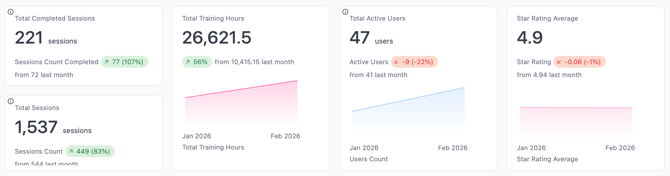
At the top of the report, four headline metrics give you an instant snapshot of your training program's health.
✅ Total completed sessions
What it shows: The number of sessions where a user fully completed a module.
- Example: 221 sessions completed — up 77 (107%) from last month.
- Why it matters: This is your primary measure of training output. A rising number means your rollout is gaining momentum.
⏱ Total training hours
What it shows: The cumulative hours your workforce has spent in training.
- Example: 26,621.5 hours — up 34% from last month.
- Why it matters: Demonstrates the total investment in training time. Use this for compliance reporting or to communicate program scale to leadership.
👥 Total active users
What it shows: The number of unique users who have started at least one session in the selected period.
- Example: 47 active users — down 41% from last month (from 41 last month → watch this trend).
- Why it matters: Distinguishes between enrolled users and engaged users. If active users drop while sessions rise, a small cohort may be doing most of the training.
⭐ Star rating average
What it shows: The average satisfaction or experience rating users give after completing sessions.
- Example: 4.9 stars — slightly down from 4.94 last month.
- Why it matters: High ratings indicate users find the training relevant and engaging. A drop in ratings is a signal to investigate specific modules or delivery methods.
📋 Total sessions
What it shows: All sessions started — including incomplete ones.
- Example: 1,537 sessions — up 449 (41%) from last month.
- Why it matters: The gap between Total Sessions (1,537) and Completed Sessions (221) tells you your completion rate. A wide gap may indicate users are starting but not finishing — worth investigating.
Step 3: Analyze the Activity Chart
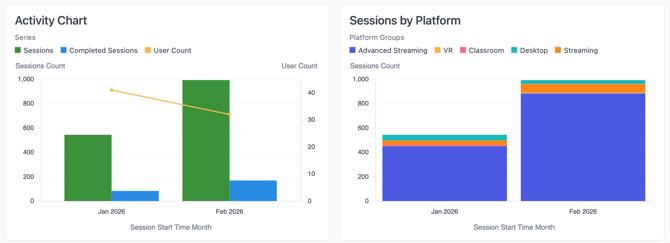
Scroll down to the Activity Chart (line/bar chart on the left).
What it shows: Sessions Count, Completed Sessions, and User Count plotted over time by month.
How to read it:
- Green bars = total sessions started each month
- Blue bars = sessions completed each month
- Orange line = number of active users
How to use it:
- Spot training surges — Did a safety incident or new site onboarding cause a spike in sessions?
- Track completion trends — Are completions growing proportionally with total sessions, or is the gap widening?
- Correlate with initiatives — If you ran a training push in February, does the chart reflect that?
Step 4: Review Sessions by Platform
The Sessions by Platform chart (right side, stacked bar) shows how training is being accessed.
How to use it:
- If one platform dominates, confirm it aligns with your deployment strategy.
- If one method (f.ex, Desktop) is unexpectedly high, users may be accessing training outside of the intended format. This is a sign to investigate.
Step 5: Dive Into the Session Completion Table
Below the charts, the Session Completion Table shows individual session records.
| Column | What to look for |
|---|---|
| Module Name | Which modules are being accessed most? |
| Email / Full Name | Who is training? |
| Score | How did they perform? |
| Session Start Time | When are sessions happening? |
| Session Duration (Minutes) | Short durations may indicate incomplete or skipped sessions |
| Platform Group | How was this session delivered? |
💡 Use case: If you see a user with very short session durations and low scores repeatedly, they may need additional support or a follow-up session.
Step 6: Check Completions by Module
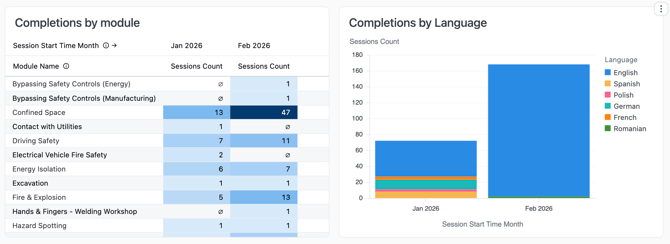
The Completions by Module table shows month-by-month session counts per module.
Example insight: If "Bypassing Safety Controls (Manufacturing)" shows 0 completions in January but 1 in February, ask: was that module newly assigned, or was January a missed opportunity?
Step 7: Review Completions by Language
The Completions by Language chart shows sessions broken down by the language the user trained in.
Why it matters: If you have a multilingual workforce, this confirms that training is being delivered and completed in the appropriate languages. Gaps here may indicate that certain language groups aren't being reached effectively.
Step 8: Read the User Feedback Section
The User Feedback table shows comments left by users after sessions — but only for sessions where a comment was submitted.
Columns:
- Email, Module Name, Platform Group, Star Rating
How to use it for leadership reporting:
- A 4.9-star average across hundreds of sessions is a compelling headline for any leadership presentation or board update. It shows the workforce isn't just tolerating the training — they value it.
- Pull specific comments that speak to real-world relevance ("this made me think differently about confined space entry") and pair them with completion and score data to build a complete ROI narrative.
- If a senior stakeholder questions whether Pixaera immersive training is more effective than traditional methods, the combination of high satisfaction ratings and improving scores across retakes is your evidence.
💡 Leadership tip: Screenshot the Star Rating Average KPI card (top of the report) alongside a handful of standout user comments for your next training review meeting. It takes seconds to compile and makes an immediate impression.
Step 9: Analyze Rating by Platform & Module
Two side-by-side tables show average star ratings:
Rating by Platform:
- Compare satisfaction across Advanced Streaming, Desktop, Streaming, etc.
- If one platform consistently scores lower, the chosen delivery method may be affecting user satisfaction.
Rating by Module:
- See which modules users rate highest and lowest.
- Modules like "Confined Space" or "Working at Height" may have lower ratings if they feel repetitive or too challenging — or higher ratings if users find them highly relevant.
Step 10: Understand Module Adoption
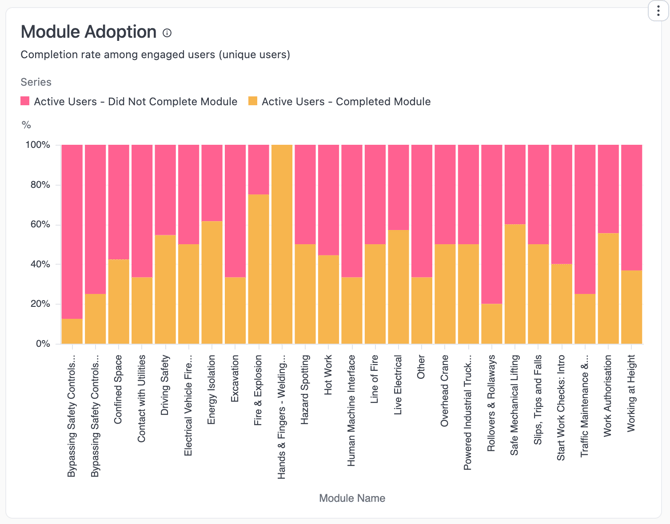
The Module Adoption chart shows the completion rate among engaged users (unique users) per module, split into:
- 🟥 Active Users – Did Not Complete Module
- 🟧 Active Users – Completed Module
How to use it:
- A module with mostly pink/red bars means many users started but didn't finish.
- A module with mostly orange bars is seeing strong completion.
- Prioritize follow-up for modules with high non-completion rates, especially if they are mandatory for compliance with your safety rules.
Step 11: Review Group, Site & Region Usage
At the bottom of the report, three tables give you a breakdown of training activity by organizational structure.
Group Usage — Shows completed sessions and user count per team or group.
- Use this to identify which groups are active vs. inactive.
- Groups with 0 completed sessions but enrolled users may need reminders or escalation.
Site Usage — Breaks down training by physical location.
- Useful for multi-site operations to compare site-level engagement.
Region Usage — Shows training activity by geographic region.
- Helpful for global or national rollouts to identify regional disparities.
How to use Activity report effectively
| Goal | What to look at |
| Prove training ROI to leadership | Total Training Hours + Completed Sessions trend + User Feedback |
| Find who hasn't trained | Group Usage + Active Users count |
| Check compliance by location | Site Usage + Region Usage |
| Identify disengaged users | Session Completion Table (short durations, low scores) |
| Understand delivery method effectiveness | Sessions by Platform + Rating by Platform |
| Spot low-engagement modules | Module Adoption chart + Completions by Module |
| Gather user experience feedback | User Feedback table + Star Rating Average |
How Activity + Performance Work Together
The two reports are most powerful when used in tandem:
| Activity Report says... | Performance Report adds... |
|---|---|
| 1,537 sessions started | But only 42.5% average score — volume isn't enough |
| 47 active users | Which of those users are actually passing? |
| High completions on Confined Space | But intervention identification is at 17% — concern |
| 5-star ratings on a module | Cross-check with scores — high enjoyment ≠ high retention |
Next: Read the Performance Report Guide to understand how well your learners are retaining and applying what they've learned.