.png?width=256&height=60&name=Logo%20(1).png)
This article provides a guided walkthrough of the Pixaera platform. You'll learn how to navigate the interface, understand what each main tab does, and get oriented with key features to help you navigate the platform, manage, deliver or consume training effectively.
Platform navigation: your main tabs
When you log in to Pixaera, you may see up to five tabs on the left side of your screen. If you don't see all 5, don't worry – this depends on your type of Pixaera access and the features your company uses. These tabs are the starting points for everything you’ll do on the platform. Here's a quick tour:
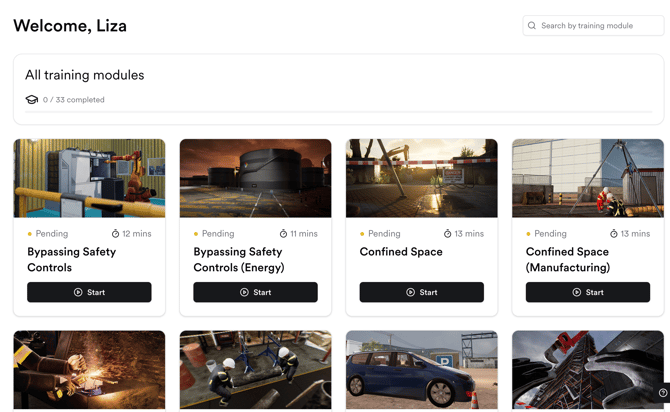
1. Training
This is the heart of the platform where all your training modules live.
- Browse training modules that are accessible via web browser, desktop app, mobile or VR headset.
- You will either see all modules for your organisation, or only modules assigned to you based on your group, site or region.
2. Reports
This section is relevant for Admins and Manager roles only.
Use this section to monitor learning outcomes and your safety training effectiveness.
- Track individual and group-level progress, completions, and scores.
- Filter data by user, module, team, site, or date range.
- Identify areas where additional training may be needed.

Activity Report guide →
Performance Report guide →
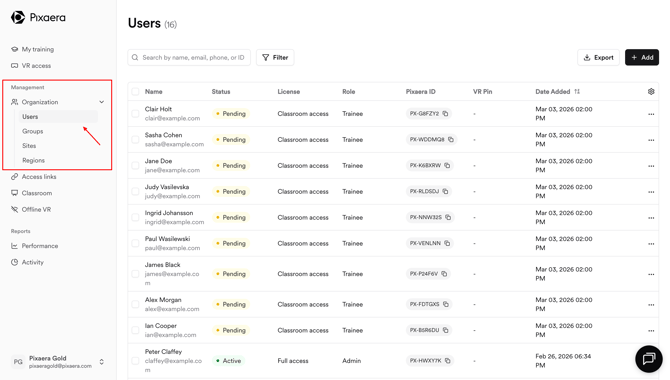
3. Organization
This section is relevant for Admins and Manager roles only.
Build and manage the structure of your workforce here.
- Add new users individually or in bulk.
- Assign users to relevant groups, sites, and regions for better segmentation and reporting.
- Create and manage organizational units like sites and regions.
- Export user lists and organizational data for oversight and analysis.
Learn more about Organization setup →
4. Classroom
This section is only relevant for Classroom Host Managers and Admins, and only appears if you use Classroom Mode for Pixaera. If you don't yet have access to Classroom Mode and you are interested, please contact your Customer Success Manager or help@pixaera.com.
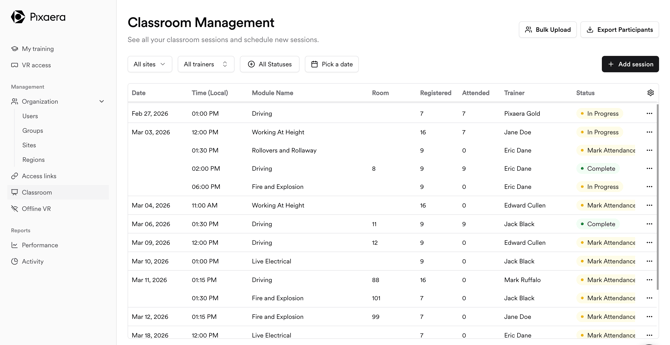
This is the space where you manage in-person training logistics.
- Schedule new classroom sessions and assign instructors or facilitators.
- Add participants manually or in bulk.
- Edit existing sessions and track attendance post-training.
- Use the integrated calendar view to stay on top of all classroom training sessions.
Read the full guide on the Classroom management →
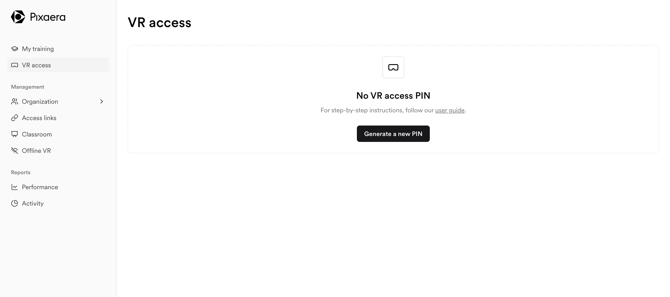
5. Offline VR
Offline Mode is a system that provides users offline access to our VR application. It's ideal for customers who need secure, offline training, or for those in remote areas without reliable internet.
- Unlock VR sessions to be used without an internet connection.
- Ensure uninterrupted learning in field sites or locations with limited connectivity.
Please note: data won't be recorded, we would always recommend trying to complete Pixaera training with an internet connection.
My Account
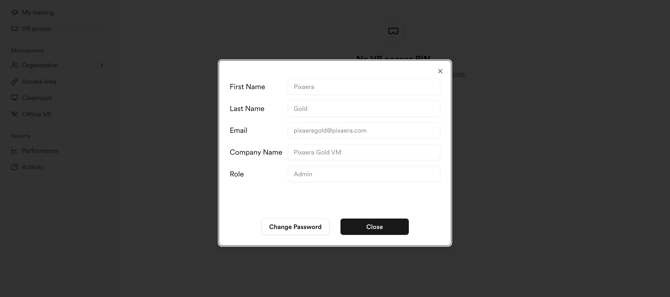
In the bottom left corner you will see your full name. This section allows you to manage your personal settings and preferences within the platform. Click on it and you will find two profile-related menus: My Profile and Change Password.
The My Profile Page contains the following information:
- Profile Details
- First Name
- Last Name
- Company Name
- Role (i.e. the permissions you have in Pixaera)
You cannot update these details, if you need to update them please contact your administrator.
Change Password
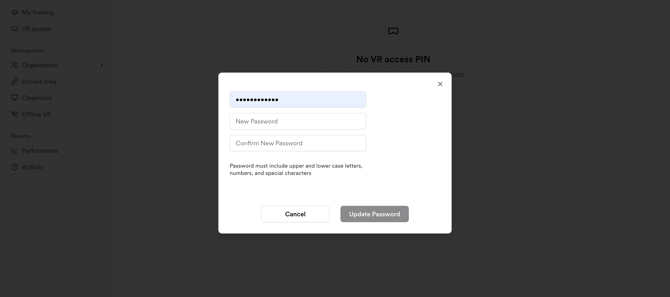
You can change your password by going to the following menu:
- Click on your name and then ‘Change Password’
- Click on your name > My Profile > Change Password
If SSO (Single Sign-On) is enabled for your organisation, then setting a password will not work. In this case, your password is the same as the password you use for some of your other company systems, that you access via SSO.
If you're unsure about any setting, you can always ask your Customer Success Manager for help. You won’t break anything by exploring!